For CFOs and finance leaders
Explain Azure cost movement before the close.
CloudMonitor brings cost, budget, forecast, unallocated spend, and anomalies into one finance view. Drill from each headline to the groups and charges behind it.
From total to cause
Follow the month from the headline to the charge.
Finance and engineering can review the same governed figures. CloudMonitor stays read-only and does not change the Azure resources behind them.
- Read movement
Compare effective cost with the prior period. Scan budget risk, anomaly exposure, and unallocated share.
- Check the plan
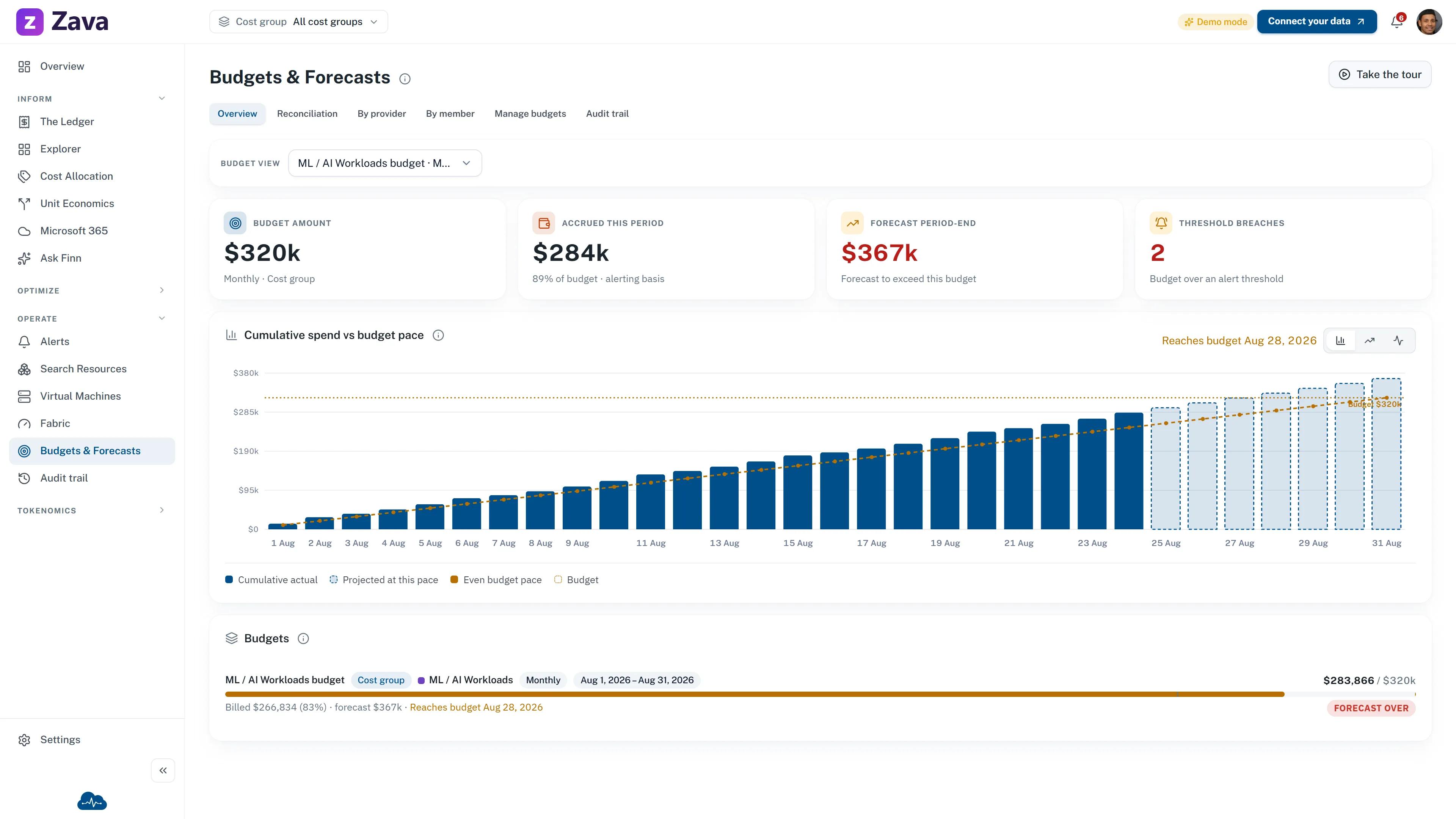
Open Budgets & Forecasts to compare spend with budget pace and the projected period end.
- Find the owner
Cost groups show the accountable group and owner. Costs with no match stay visible in Unallocated.
- Trace the charge
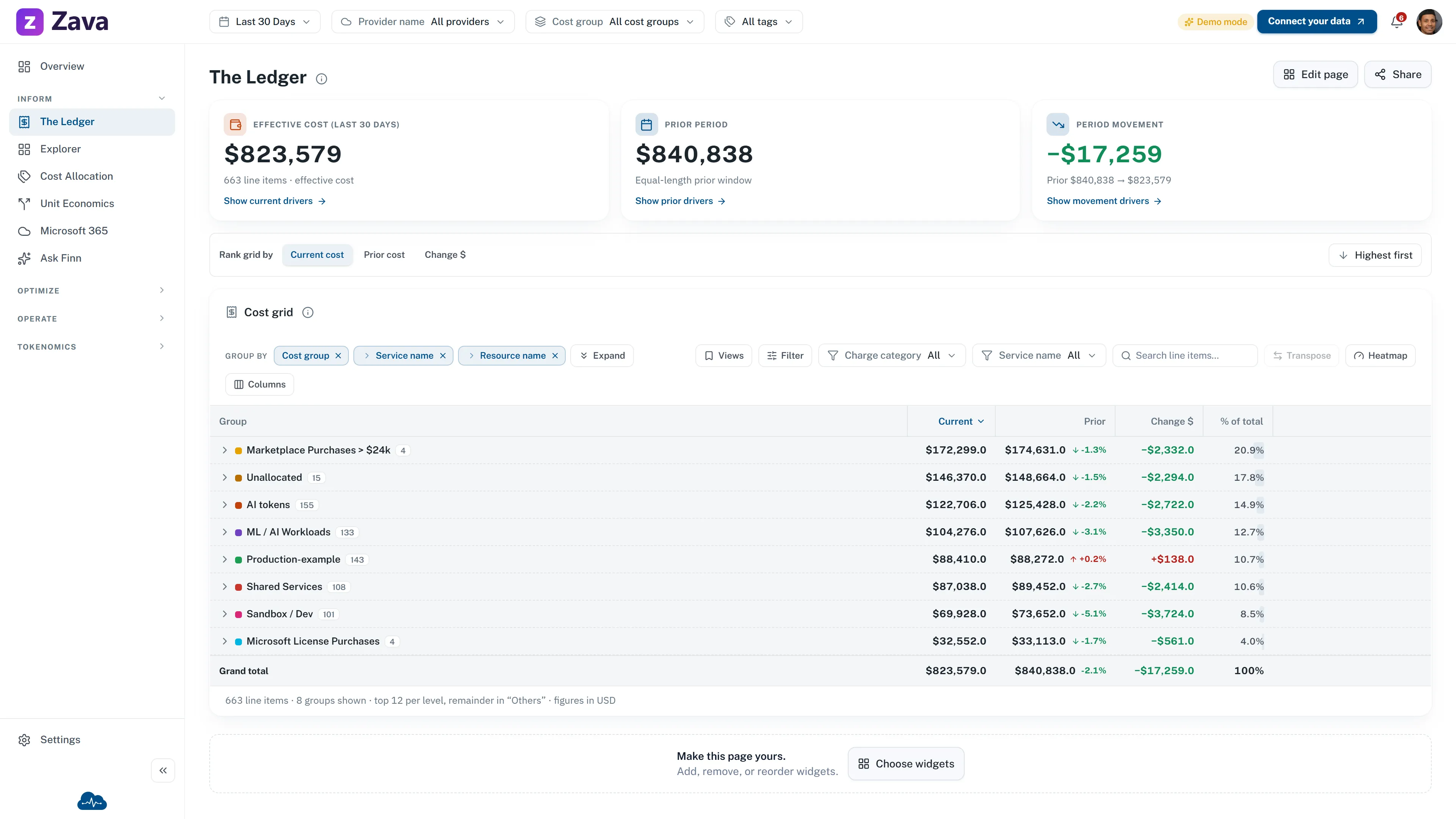
Group the Ledger by cost group, service, and resource to reach the billing rows behind a total.
Budgets and forecasts
See the projected finish before spend crosses the line.
Each budget keeps its own monthly, quarterly, or annual period. Compare them side by side, then open one budget to review its pace.
- Accrued
- Near-daily priced usage used for alerts.
- Forecast
- The projected finish for that budget's period.
- Reconciliation
- Accrued and invoice-confirmed billed cost shown together.
Allocation and showback
Build stable showback before you call it chargeback.
The Ledger puts each connected billing charge in one table. Group it by cost group, service, and resource so finance and engineering can trace the same total.
- Stack up to three grouping levels.
- Keep the system Unallocated group visible.
- Save a useful grouping as a repeatable view.
Modeled range
10–22%
Estimated year-one Azure savings, by estate size.
This published planning range is not a guarantee. Your result depends on the estate, the opportunities found, and the actions your team approves.
Model your Azure estate“They identified and improved several areas, saving our company thousands of dollars each month in subscription costs.”
Rafic Habib · CEO, Clinic to Cloud
46% Azure spend reduction Measured over a two-week implementation windowException review
Review the cost impact before the raw telemetry.
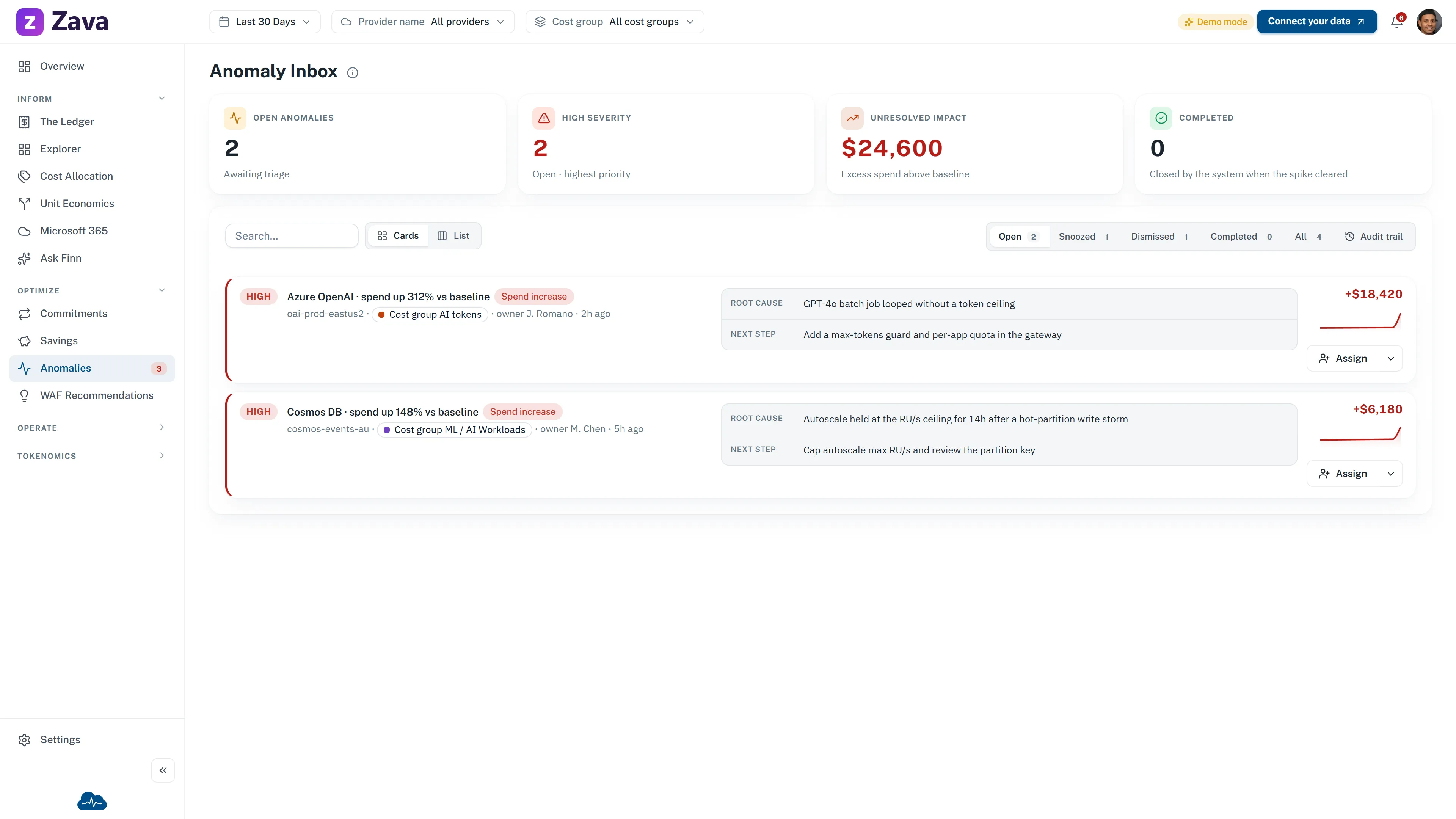
The Anomaly Inbox shows severity, excess spend above baseline, cost group, owner, root cause, and next step. Finance can review the material movement while the accountable group handles the investigation.
CloudMonitor closes an anomaly when the spend returns to normal. People can reassign, postpone, dismiss, or reopen it, but they do not mark it complete.
Ask Finn
Turn month-close movement into a finance brief.
Licensed organization administrators can ask Finn about governed organization-wide data. Answers are read-only and do not inherit report filters, so verify any material number in the Ledger.
Compare July with June by cost group using billed cost. Flag large changes, budget risk, and unallocated spend.
Add the period, cost group, and selected cost basis.
Review Azure cost with finance.
Bring the team that owns the budget and the team that owns the resources.