Delegate a cost anomaly investigation
Step 1
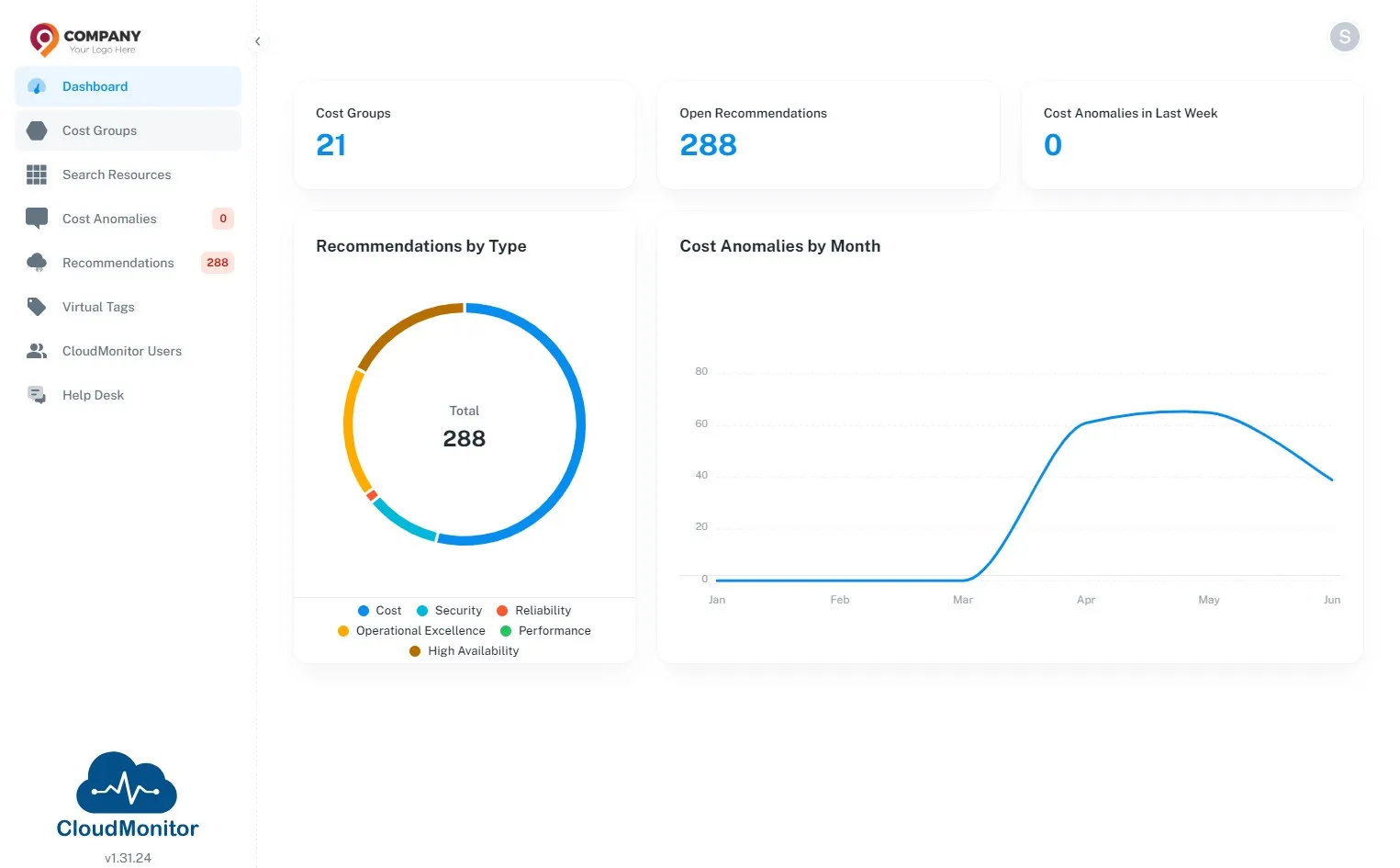
Section titled “Step 1”Navigate to Admin App and Click on “Cost Groups”
Step 2
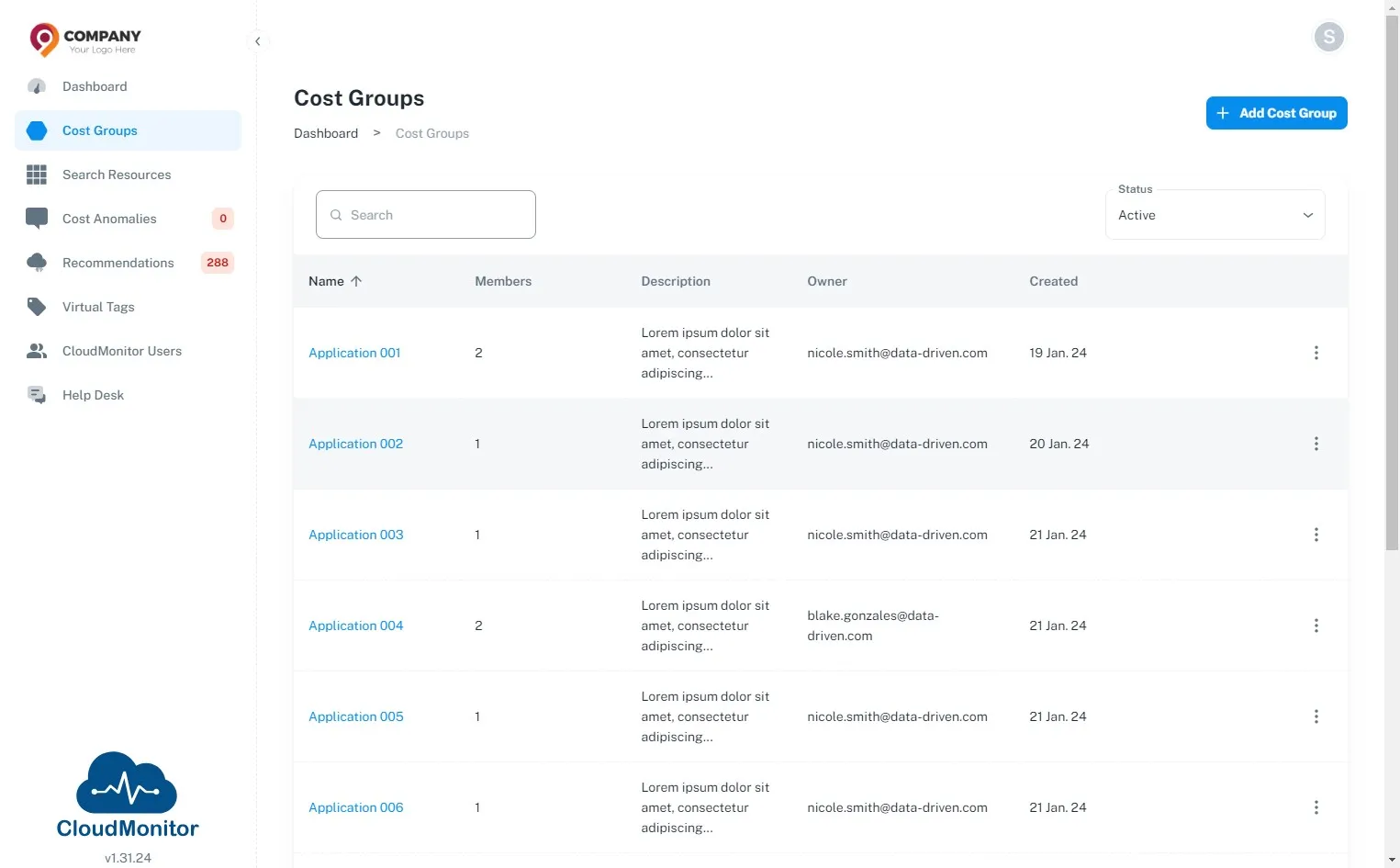
Section titled “Step 2”Tech Lead can be a member of multiple Cost Groups therefore, select the Cost Group that needs to be investigated.
Step 3
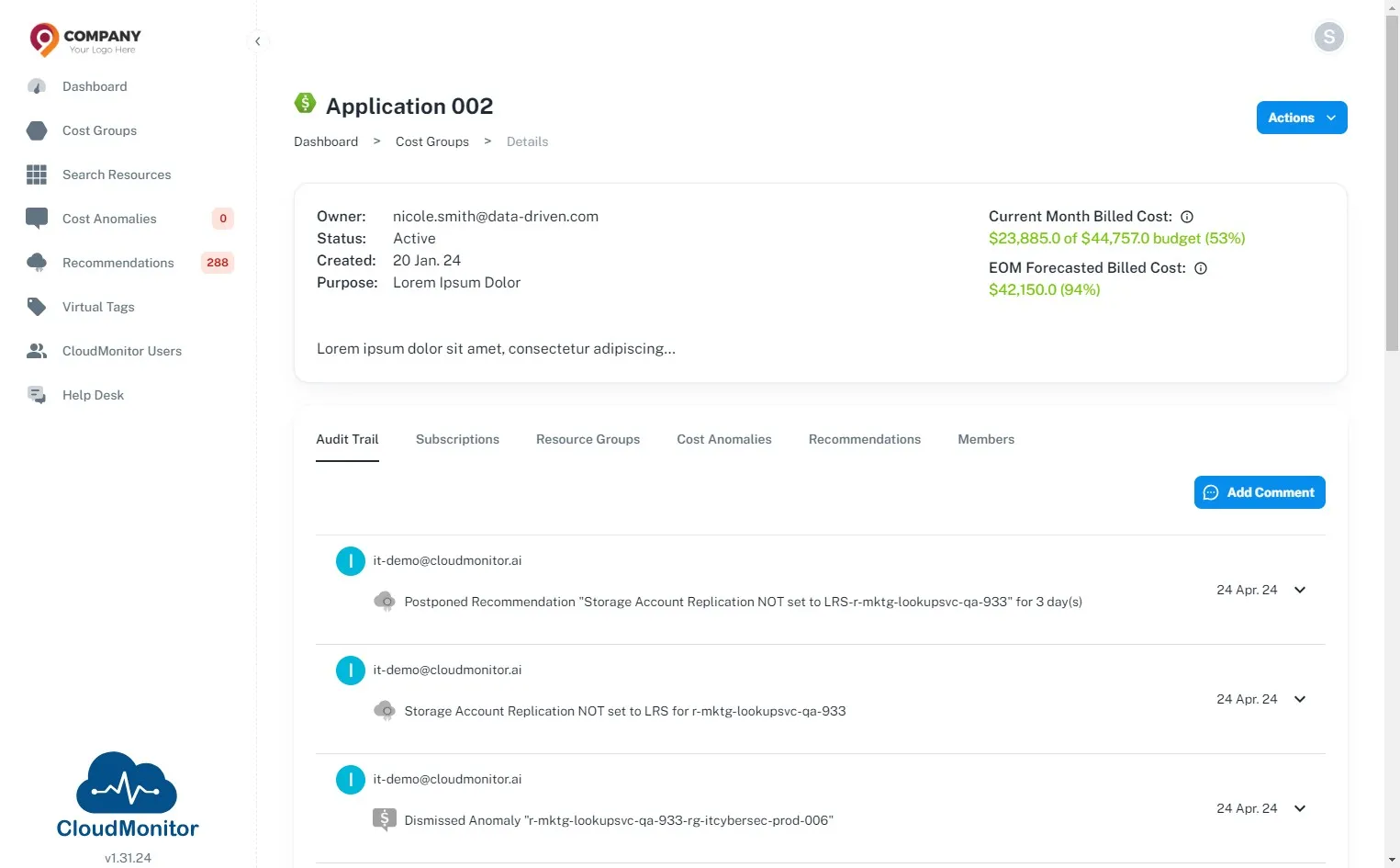
Section titled “Step 3”Click “Cost Anomalies”
Step 4
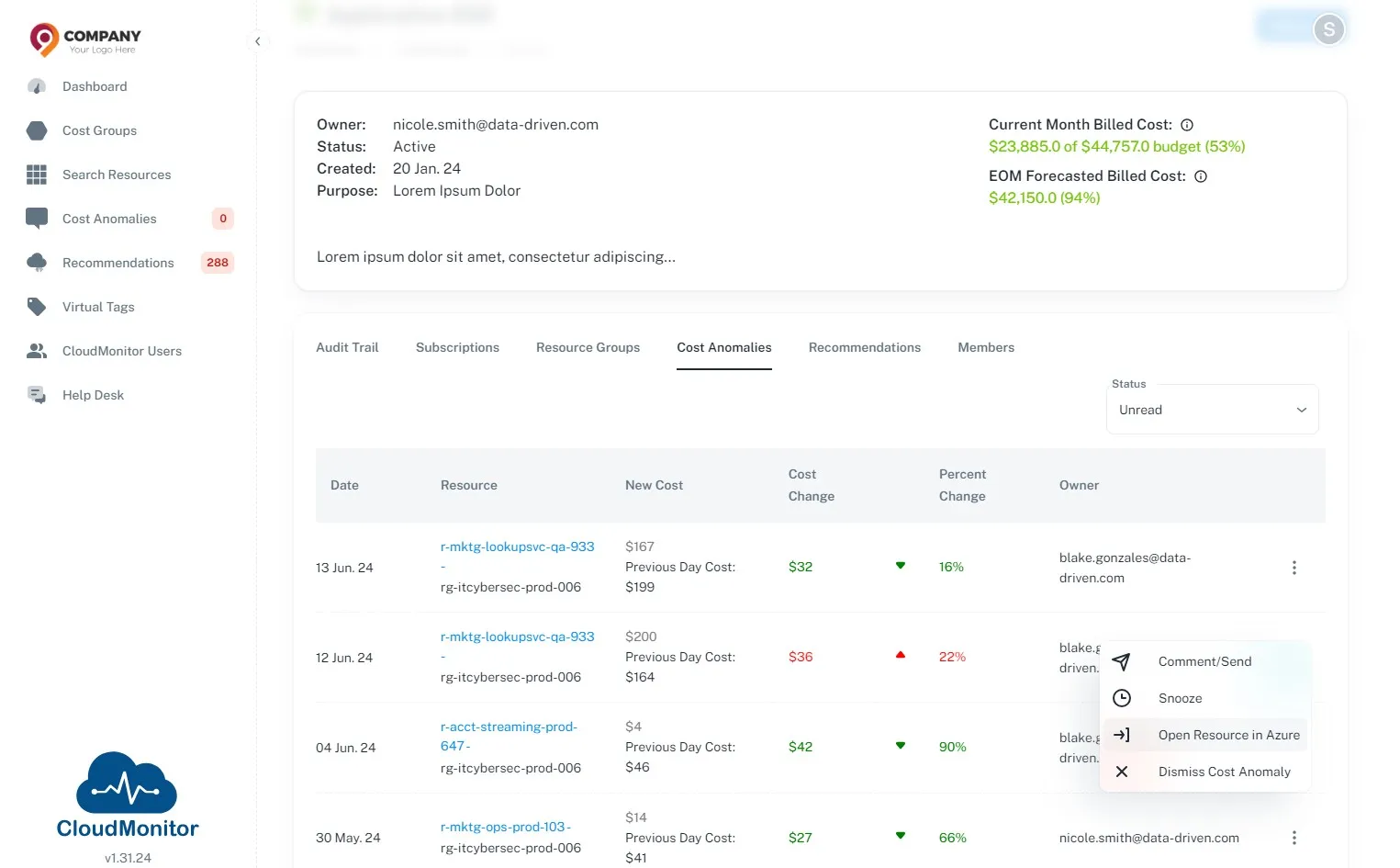
Section titled “Step 4”Select the Cost Anomaly which needs to delegated and click this icon.
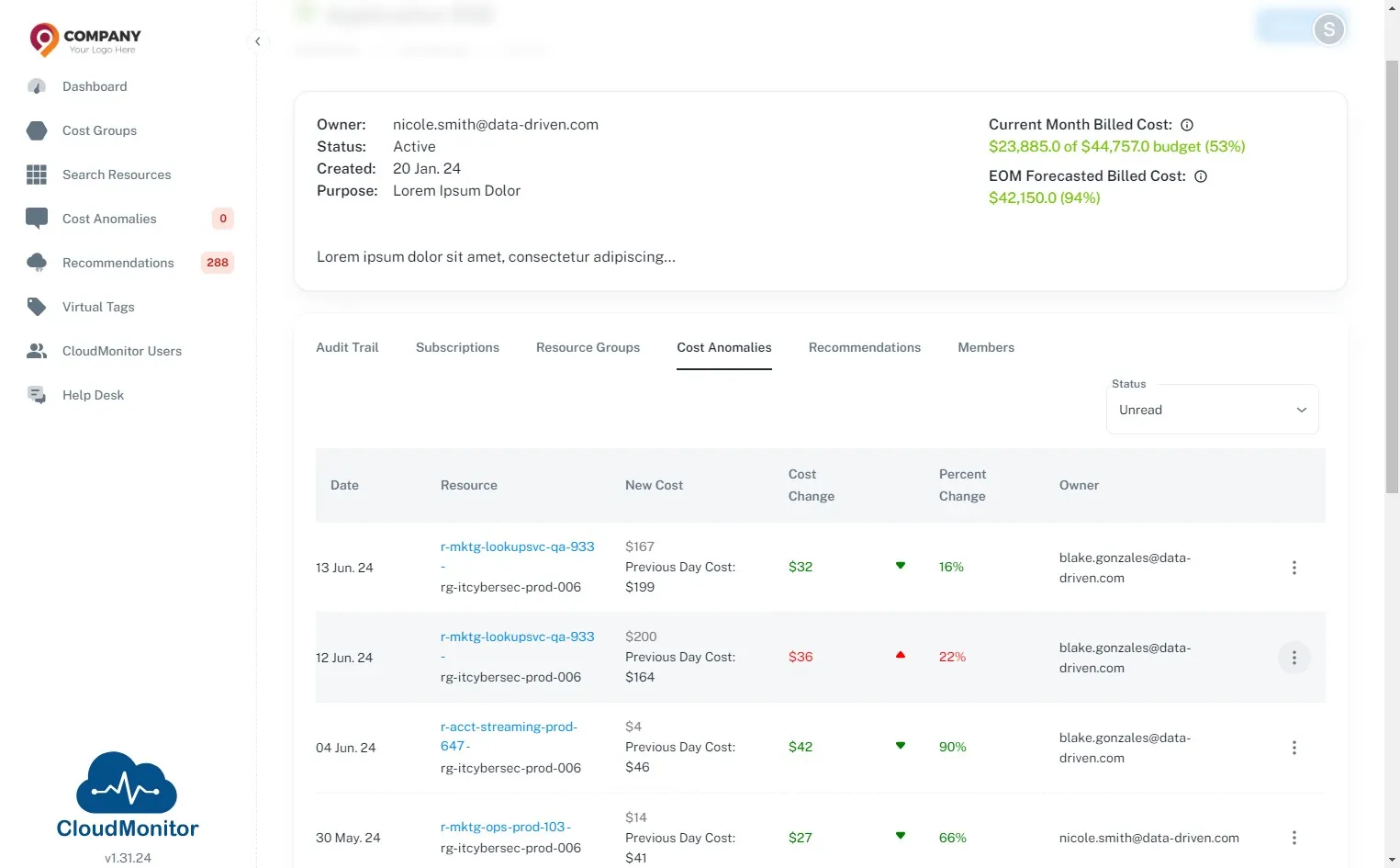
Step 5
Section titled “Step 5”Click “Comment/Send”.
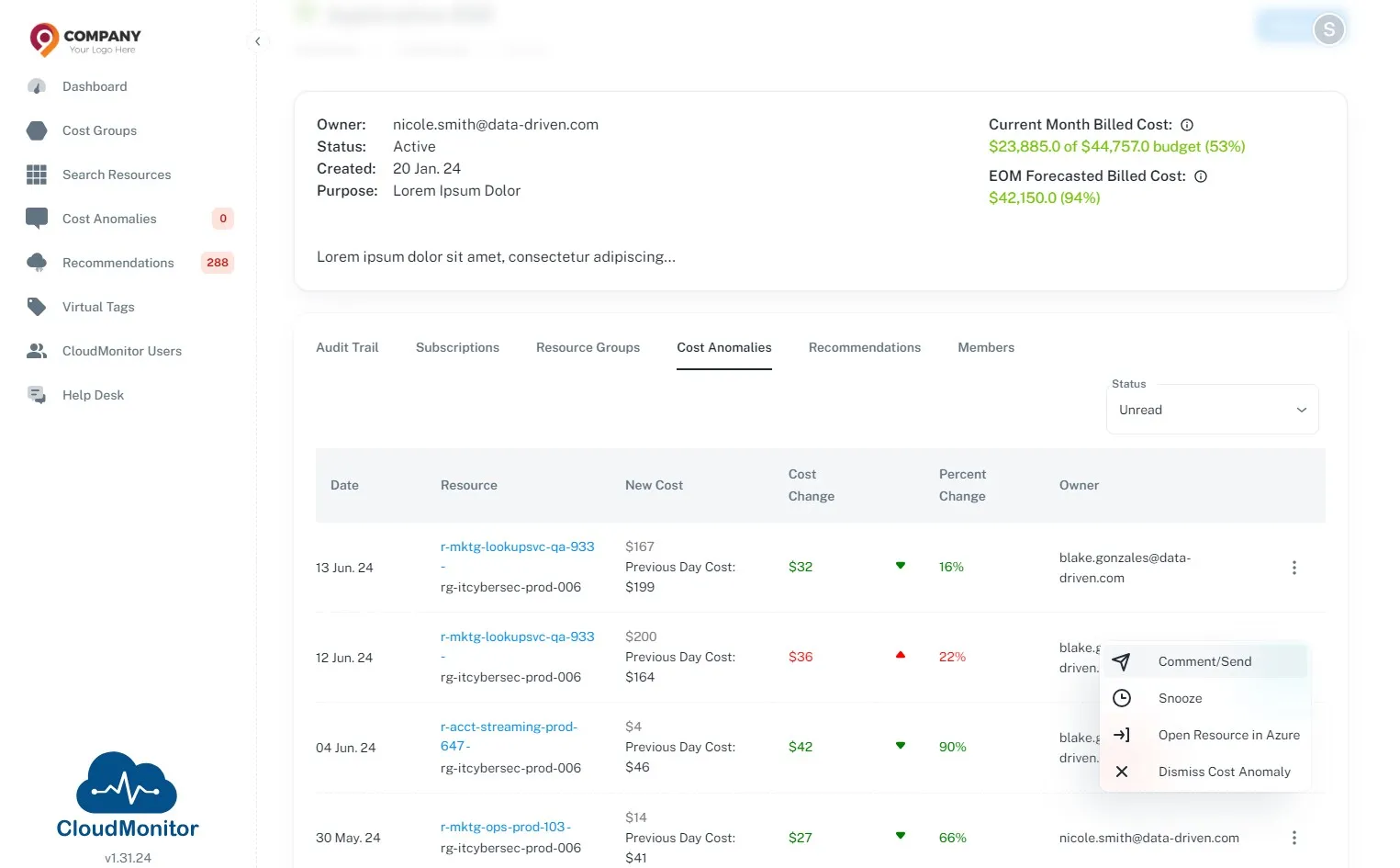
Step 6
Section titled “Step 6”Select the person who needs to be delegated and write a meaningful message to the assignee mentioning this needs to be investigated
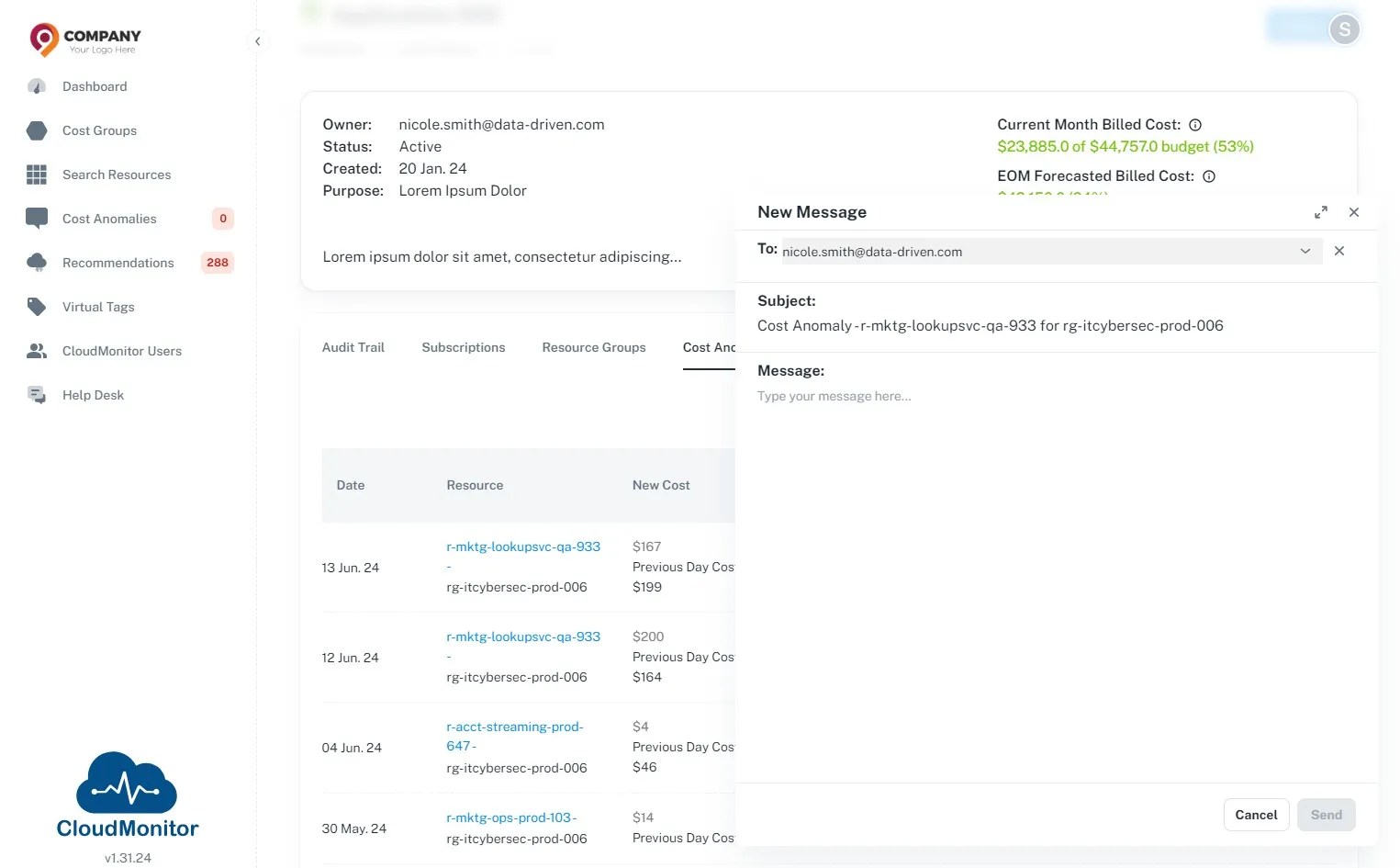
Step 7
Section titled “Step 7”Click “Send”.
This will notify the assignee via Teams Bot and Email
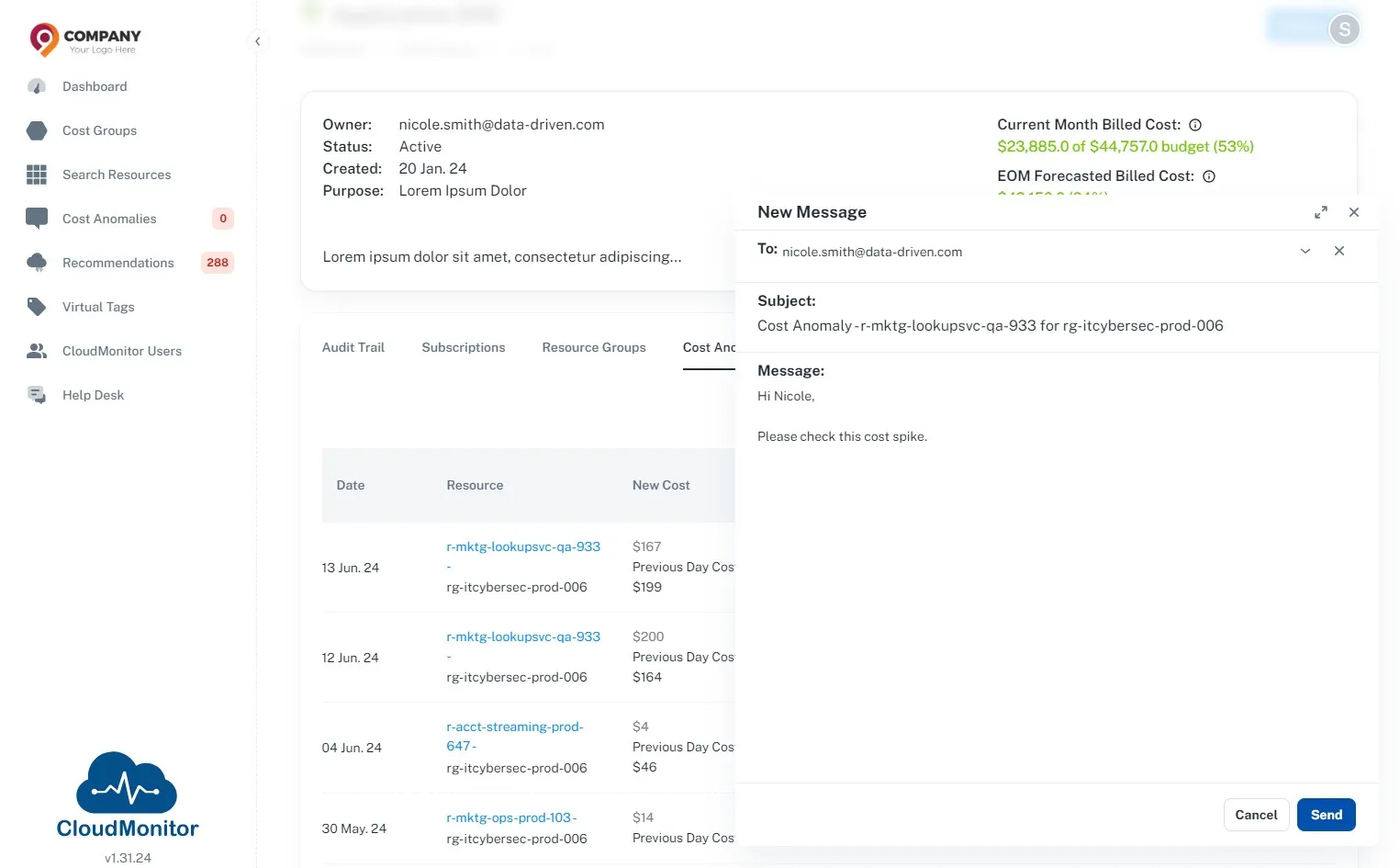
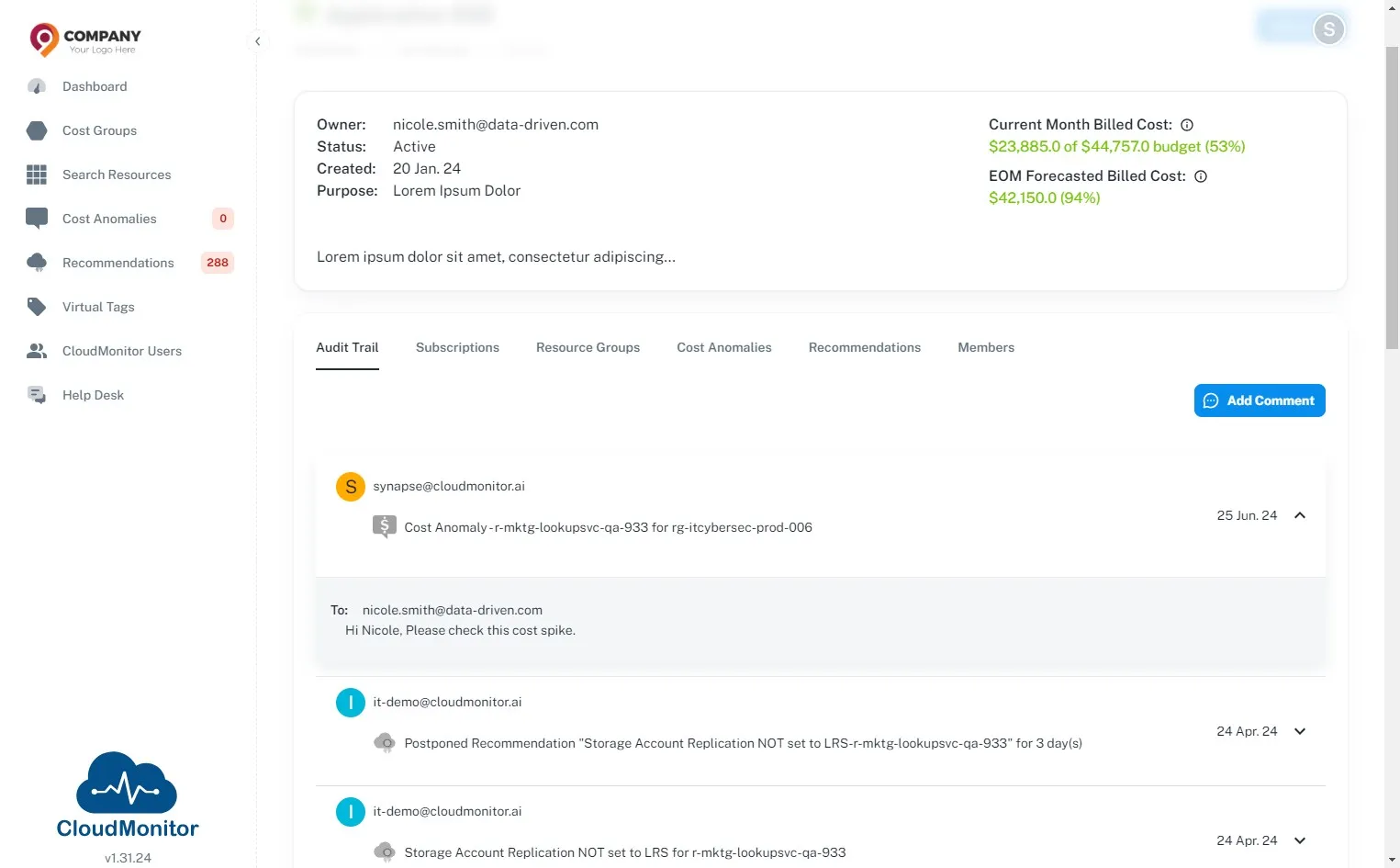
Step 8
Section titled “Step 8”Audit trail will be updated with this re-assignment
Step 9
Section titled “Step 9”Once the selected person gets notified, they can click on this button to view the resource in Azure Portal and investigate the cost spike