Skip to content
Documents an earlier release of CloudMonitor — the app, screenshots and steps shown here may have changed. See the current FAQ.

Assign EA roles as Enterprise Administrator legacy

Follow these steps to assign different roles as an Enterprise Administrator for Enterprise Agreement customers.

1. Go to ” Cost Management + Billing” in your Azure Portal
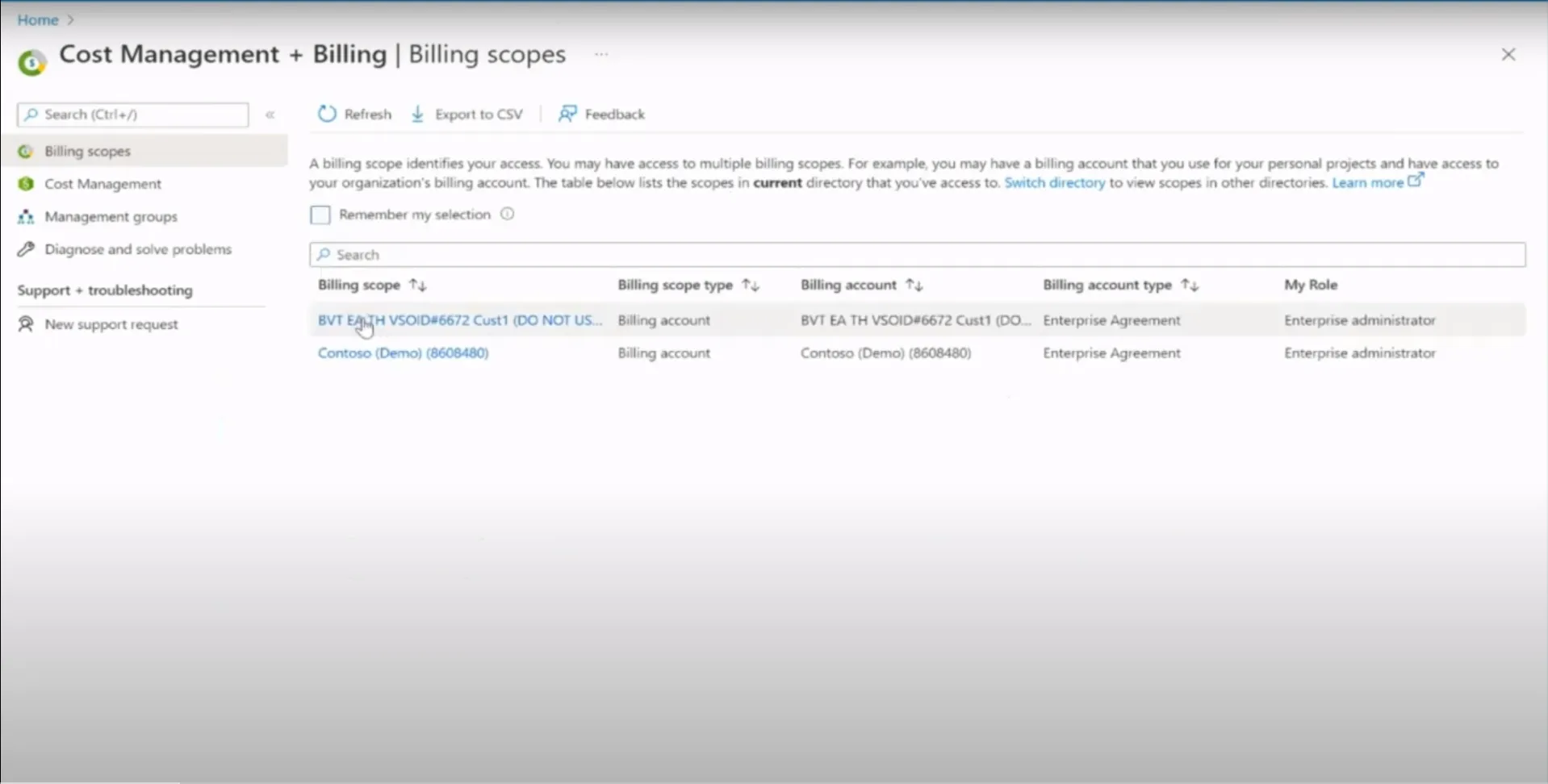
Azure portal Cost Management + Billing landing page for an Enterprise Agreement billing account

2. Select and click on the Department or Account on the menu on the left.
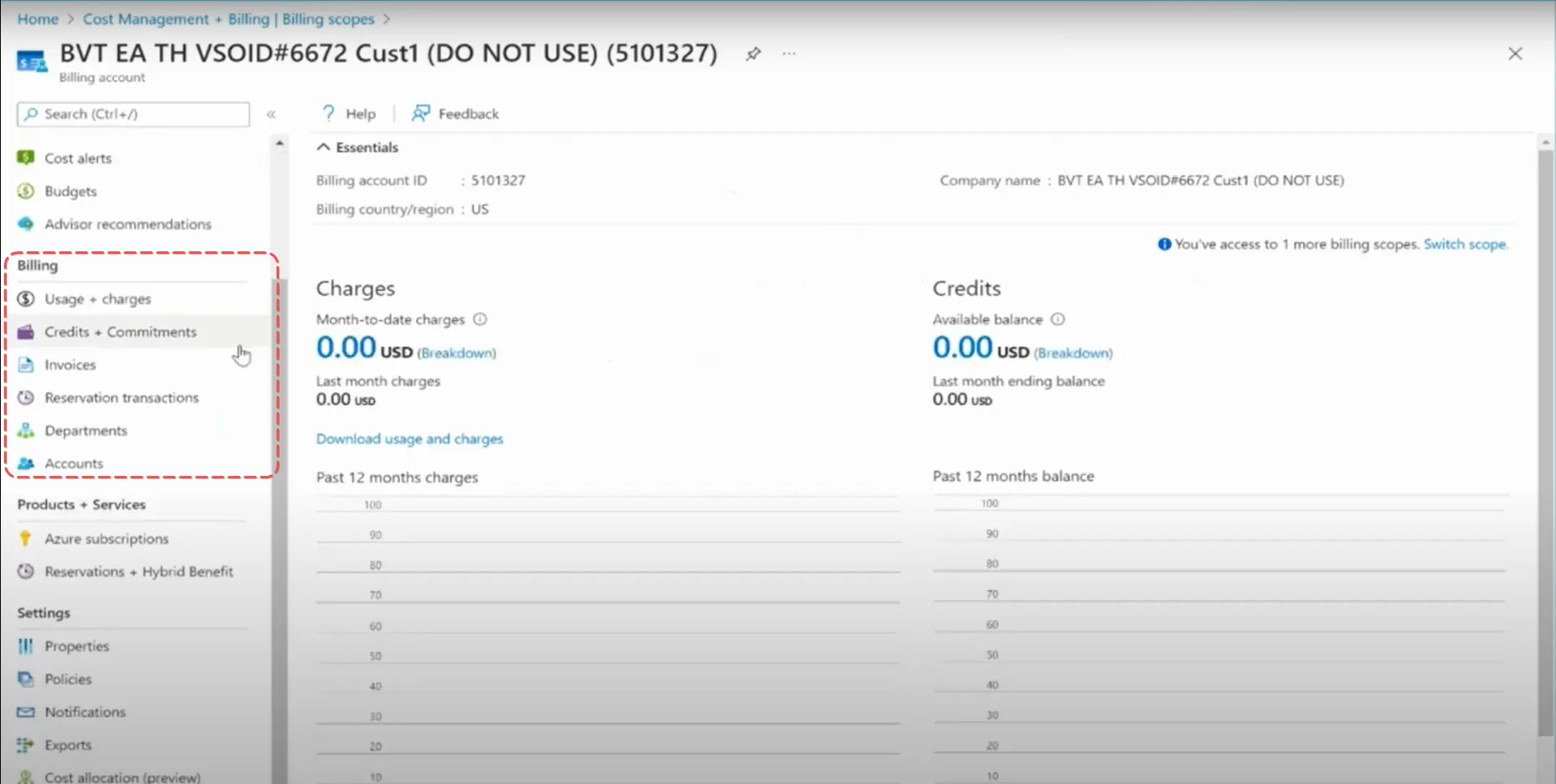
Left-hand menu of Cost Management + Billing with Departments and Accounts options selected

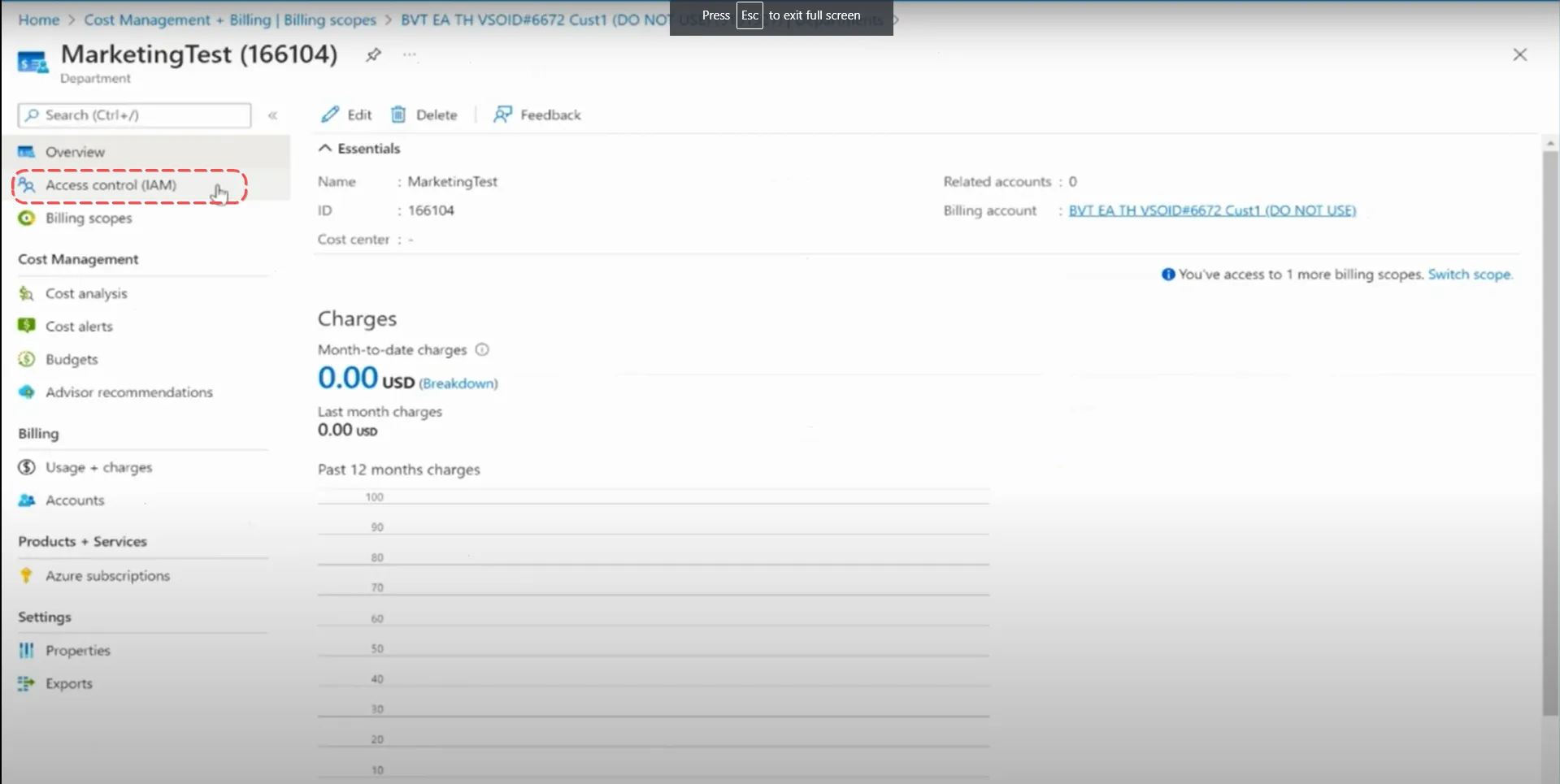
3. Go to ” Access control (IAM)”

Access control (IAM) blade for the selected EA Department or Account

4. Click on ”+ Add” to add either a “Department administrator” role for Departments or a “Account owner” role for Accounts.
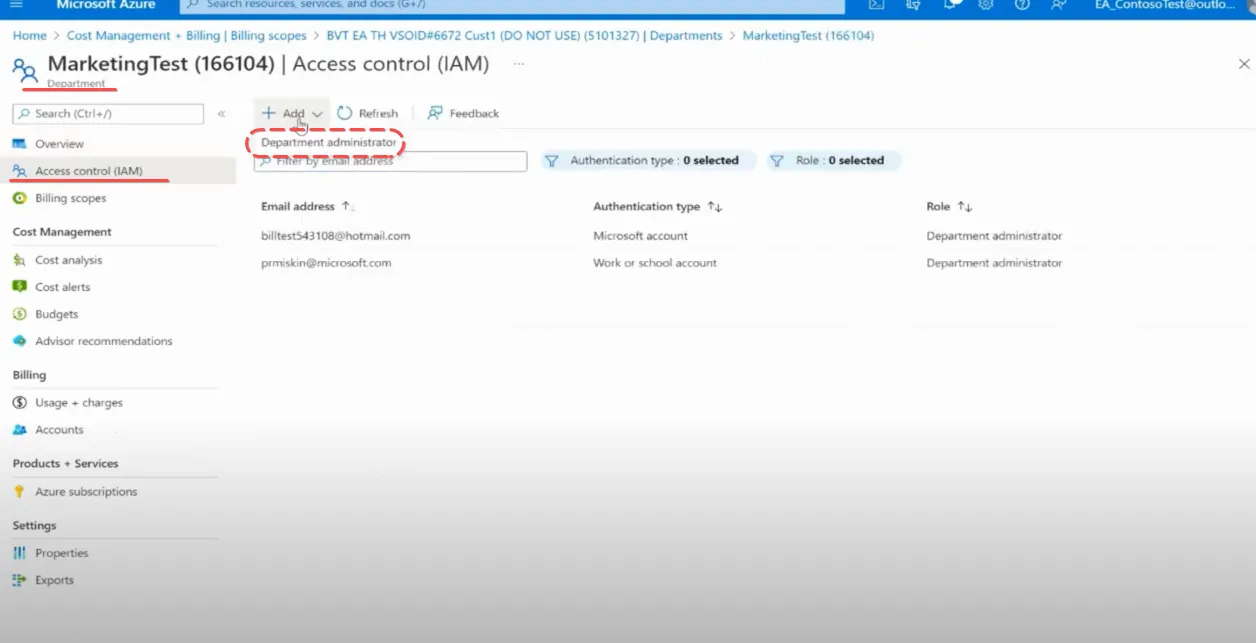
Access control + Add menu offering Department administrator or Account owner role assignments

5. Enter an Email address, select Auth type and Read only access and add new role.
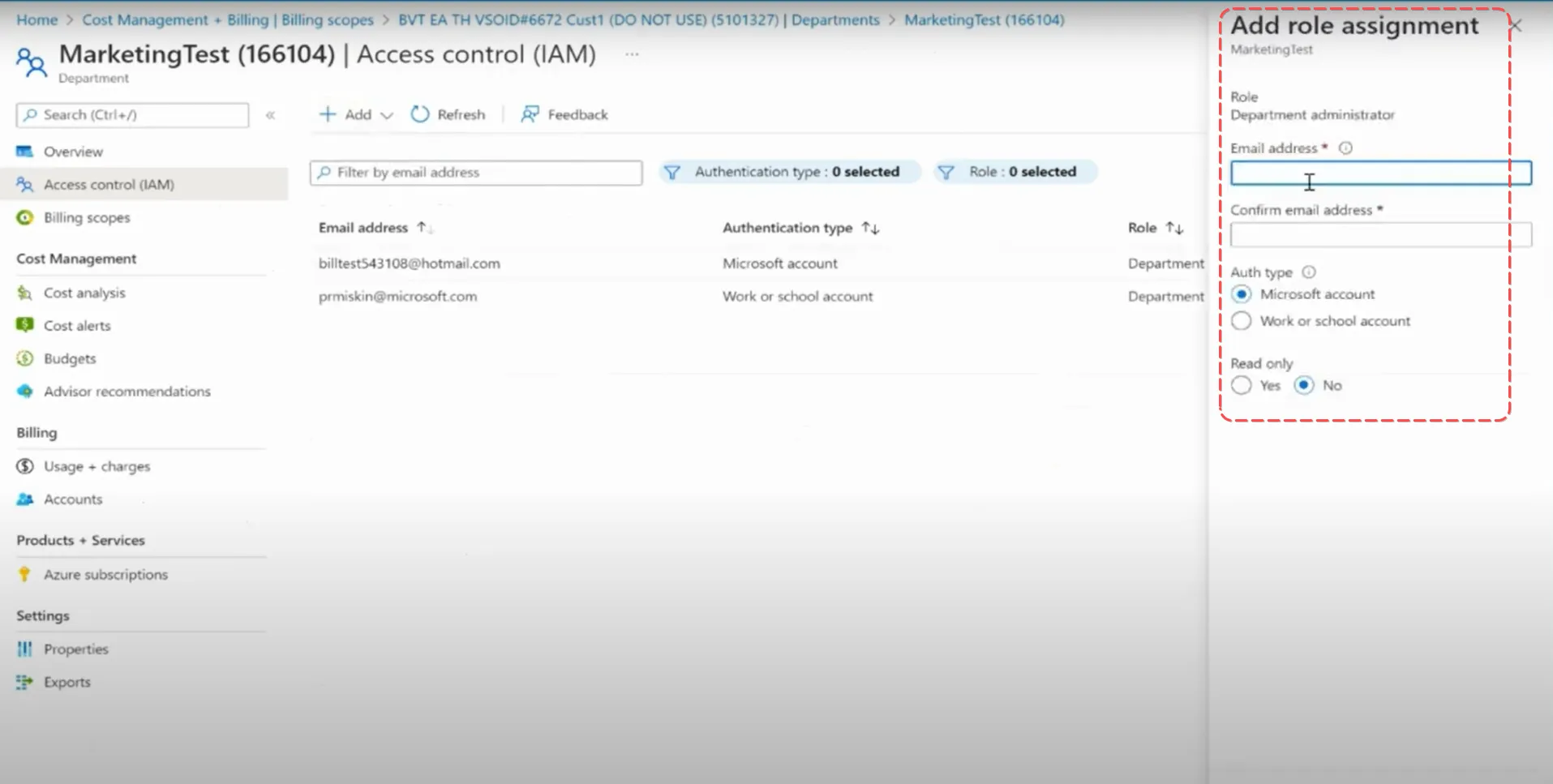
Add role form with email address, authentication type, and read-only access fields completed

Live chat didn’t load

This browser blocked our chat widget, so the support button can’t open. A privacy shield or content blocker is the usual cause.

  1. Click the Brave Shields icon (the lion) beside the address bar.
  2. Turn Shields off for cloudmonitor.ai.
  3. Reload this page. The chat icon returns bottom right.
  1. Open your content blocker or privacy extension.
  2. Allow cloudmonitor.ai.
  3. Reload this page. The chat icon returns bottom right.

Rather leave the blocker on? Send us a message or search the help desk.