Enable the Reservations / RI feature
Step 1
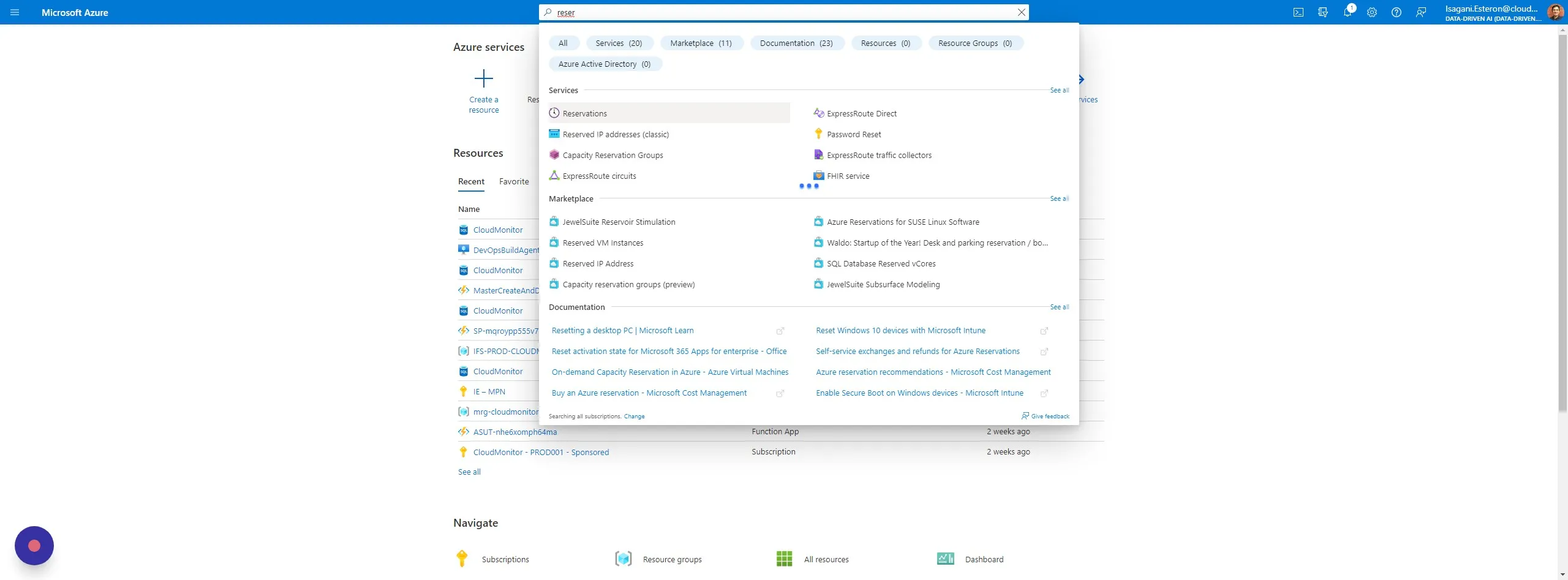
Section titled “Step 1”Open the “Reservations” section in your Azure Portal.
Step 2
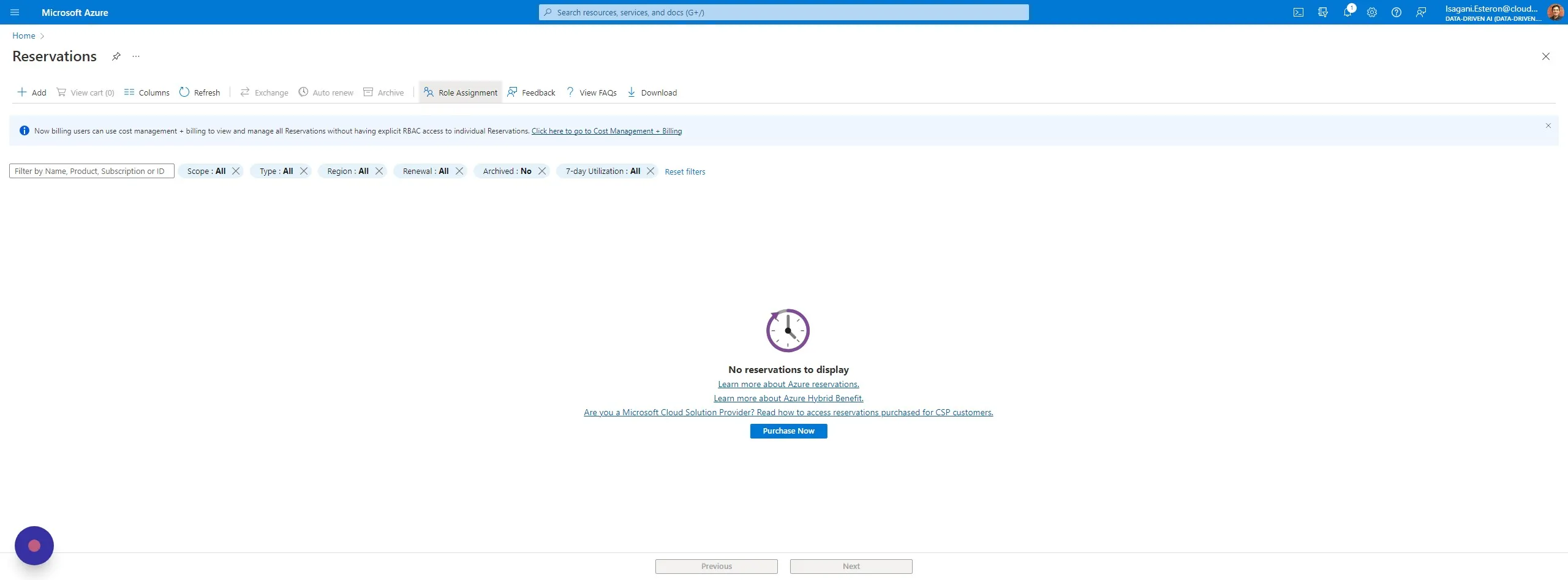
Section titled “Step 2”Click “Role Assignment” (See the step above if this is greyed out regarding elevated User Access Administrator).
Step 3
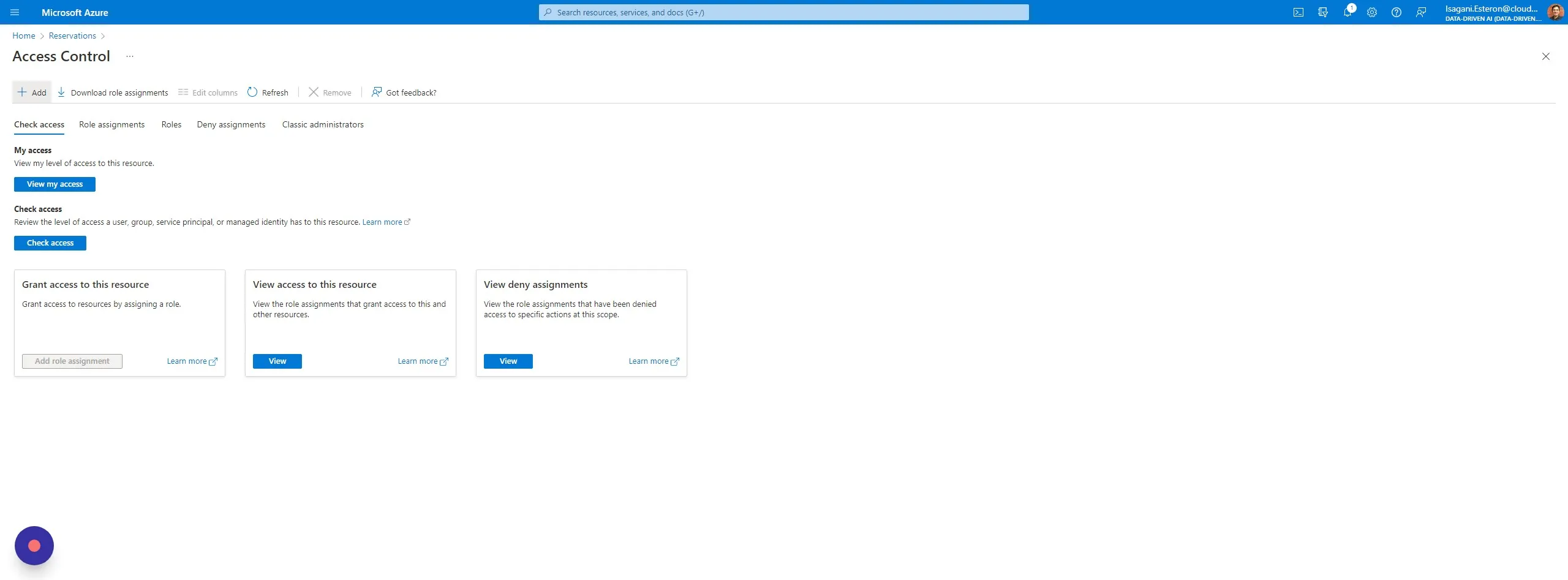
Section titled “Step 3”Click ” + Add” and “Add role assignment”
Step 4
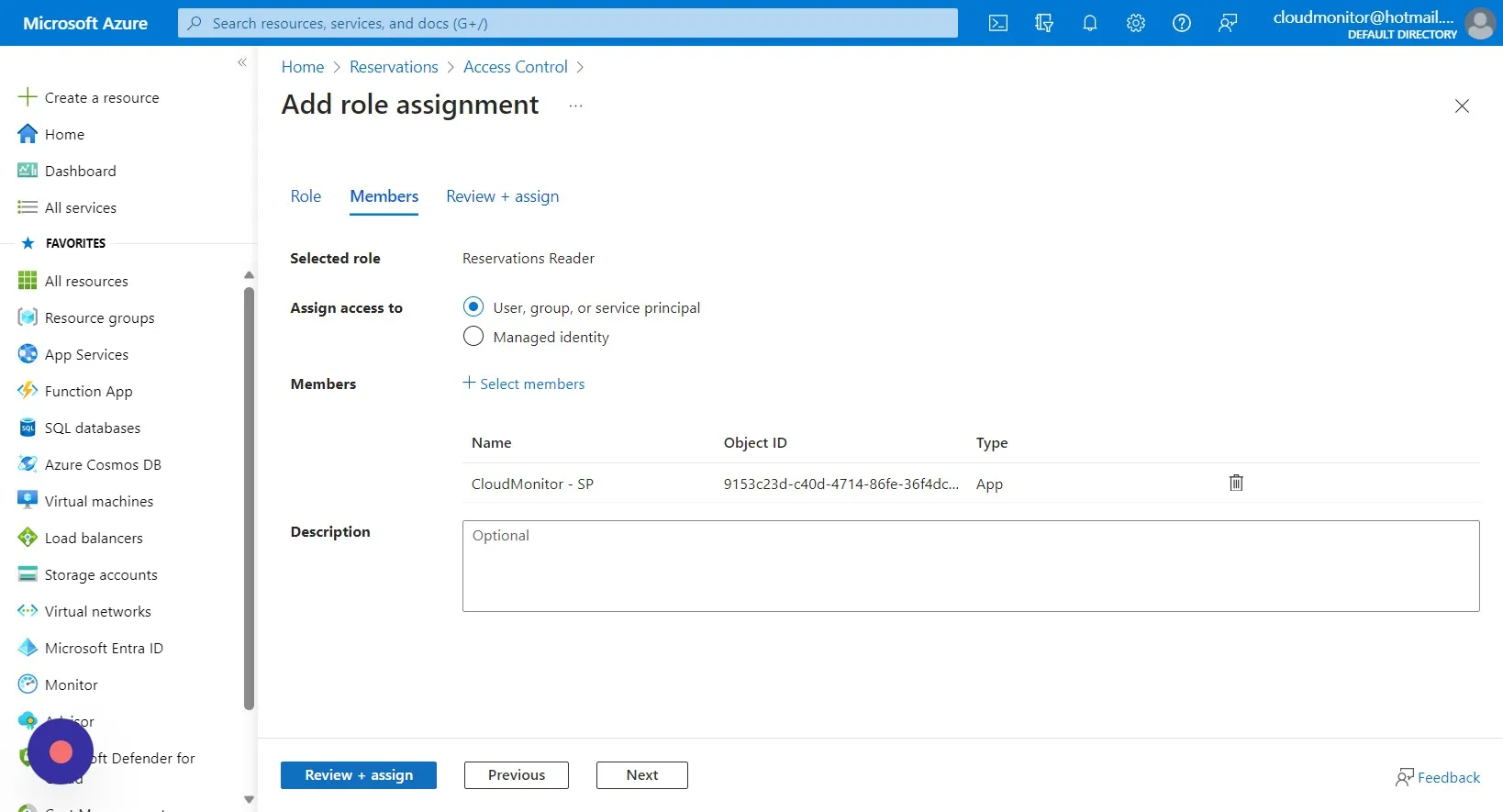
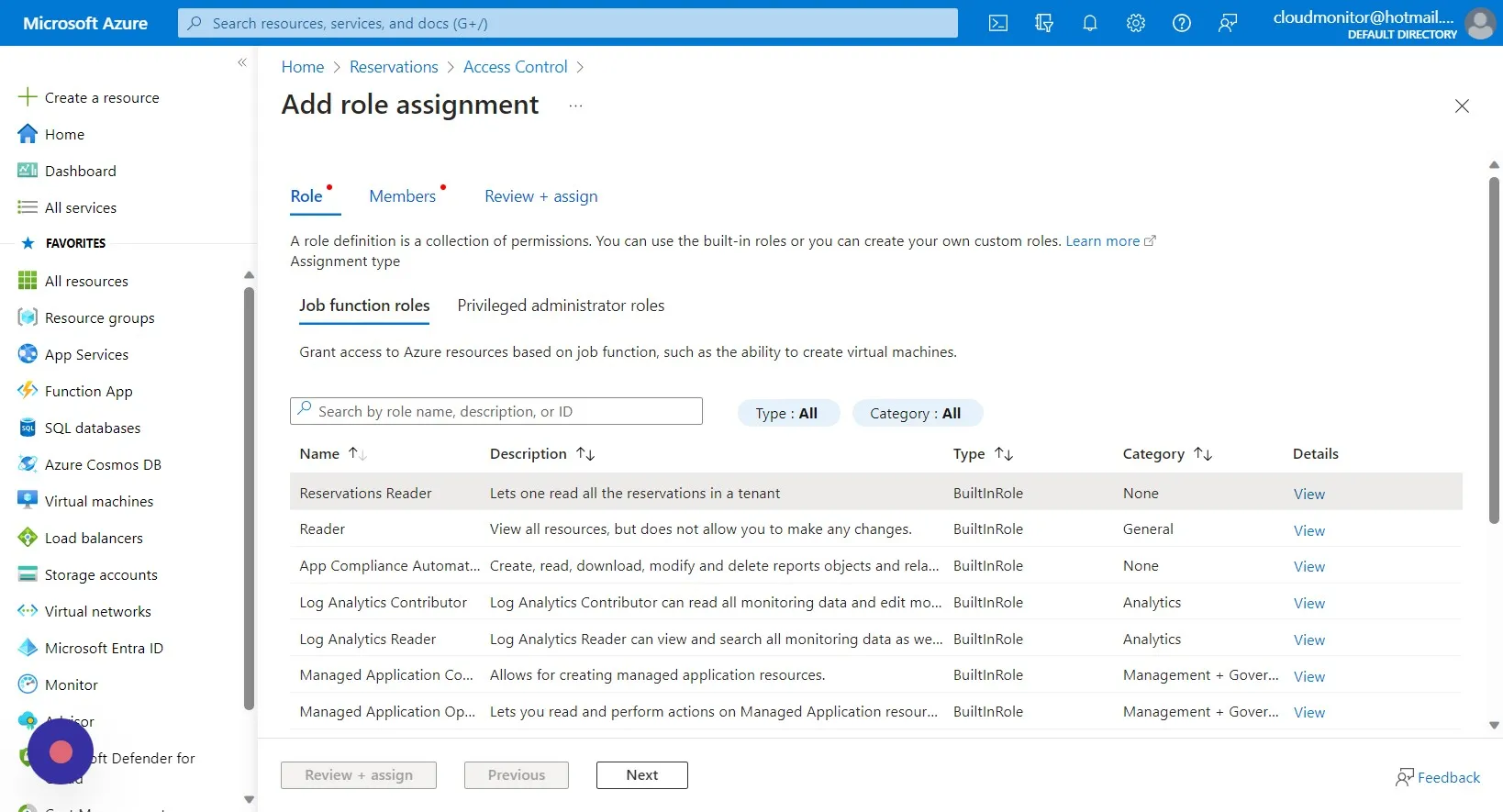
Section titled “Step 4”Select the “Reservations Reader” role and click on “Next” (This role cannot write or change any information).
Step 5
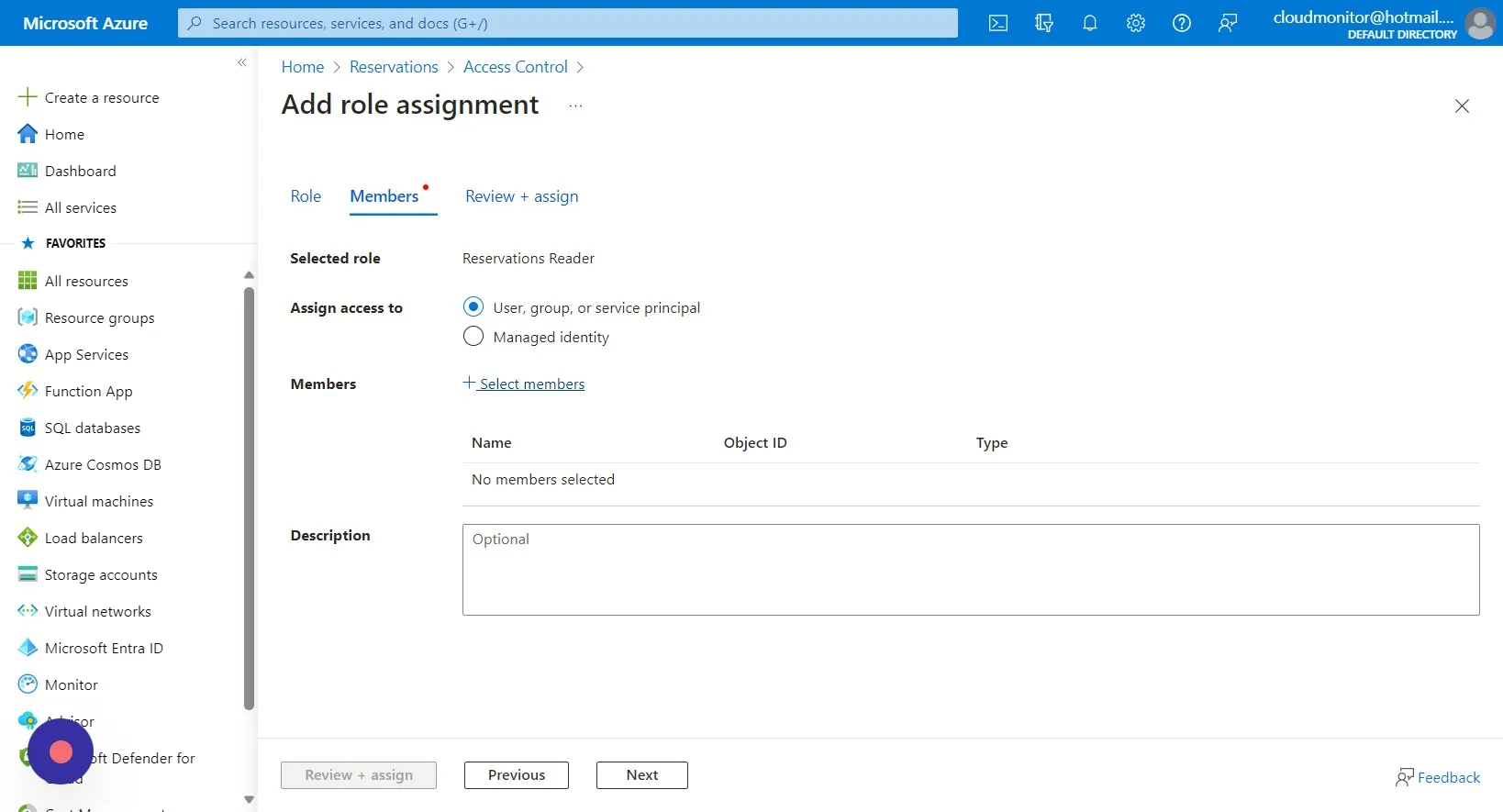
Section titled “Step 5”Click on “Select members”
Step 6
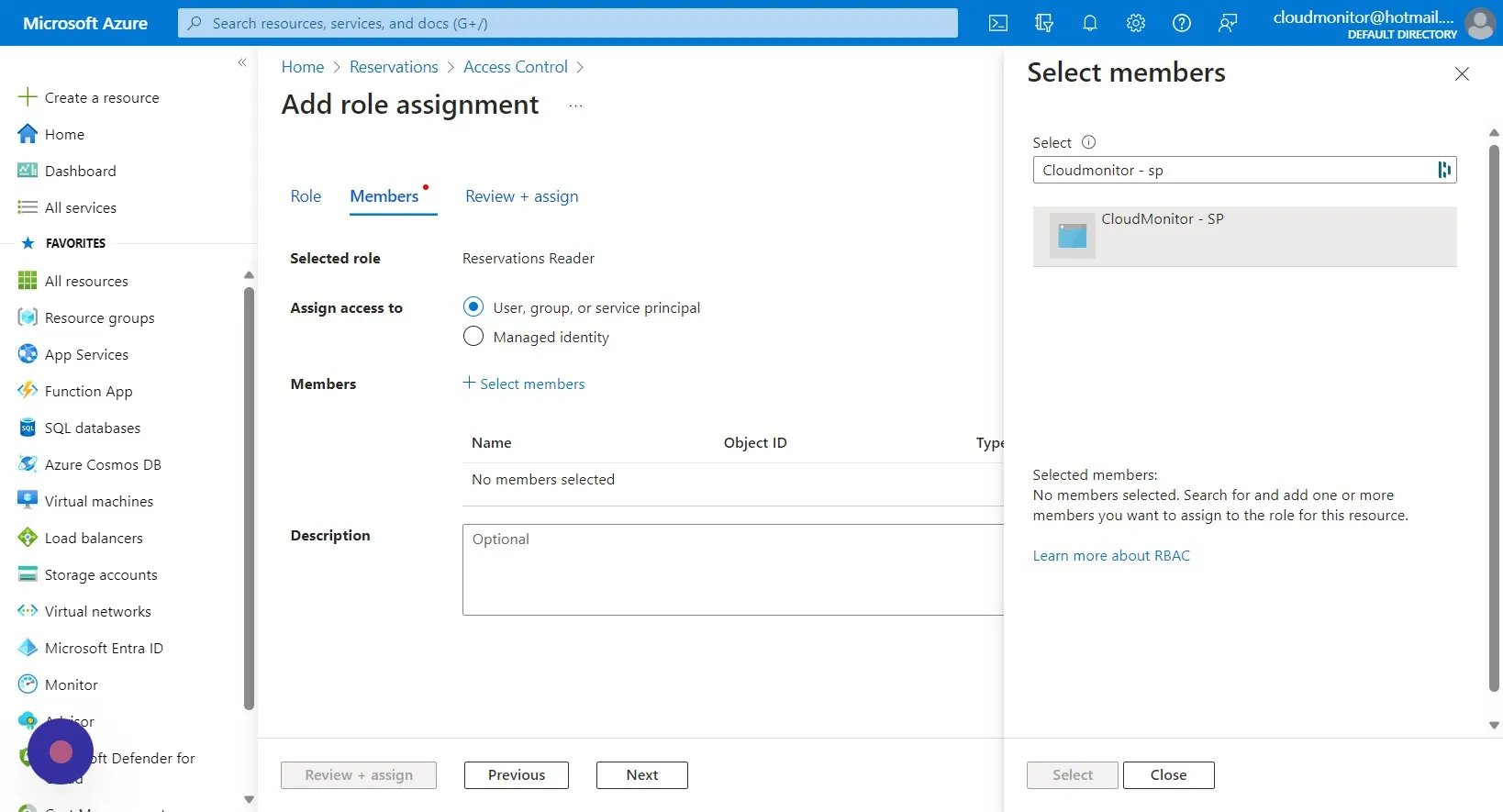
Section titled “Step 6”Type in the name of the CloudMonitor Service that you created when you installed CloudMonitor and select it.
Step 7
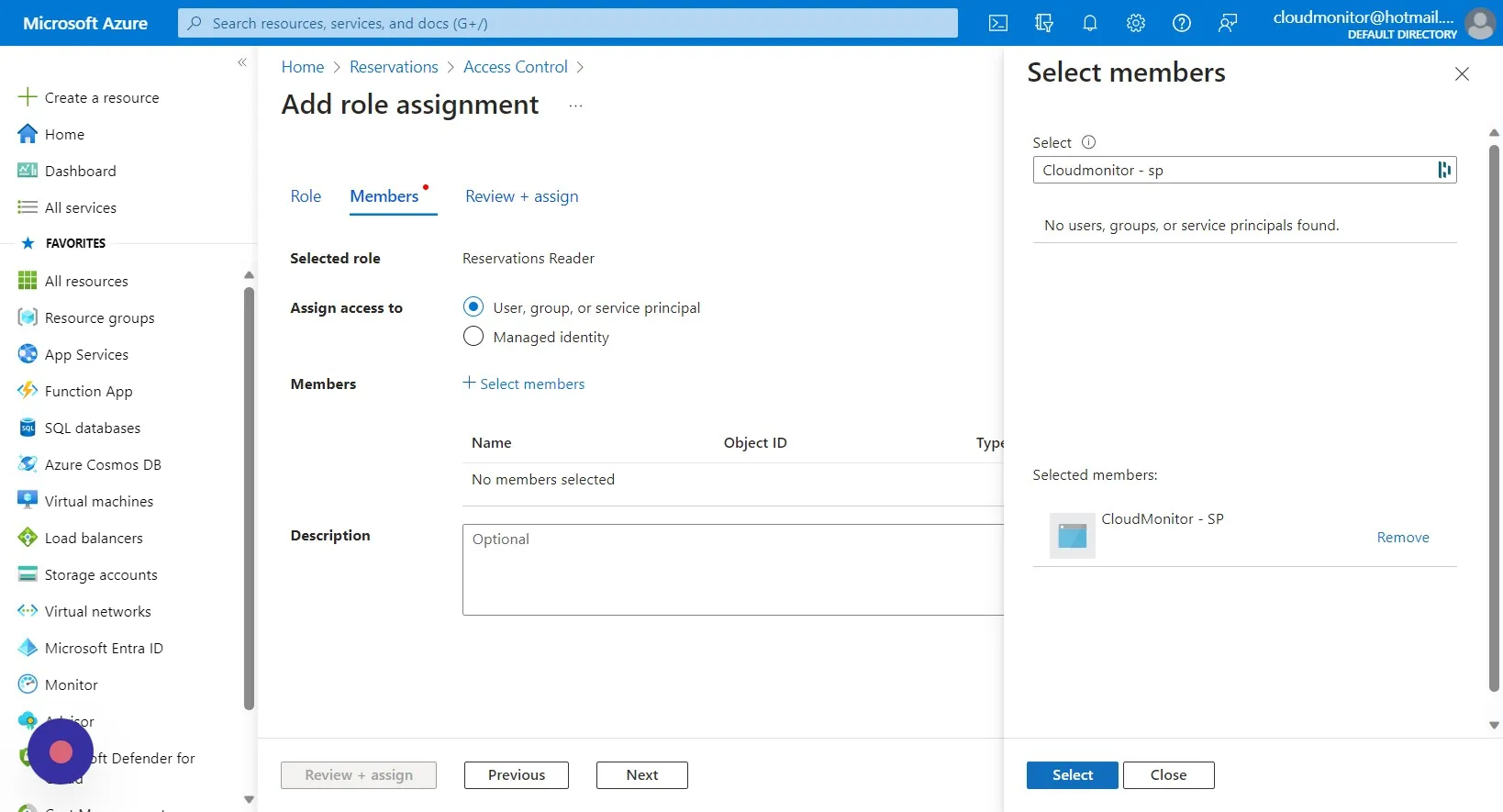
Section titled “Step 7”Click on “Select”.
Step 8
Section titled “Step 8”Click “Review + assign”.