Fix mis-tagged resources for cost allocation
Step 1
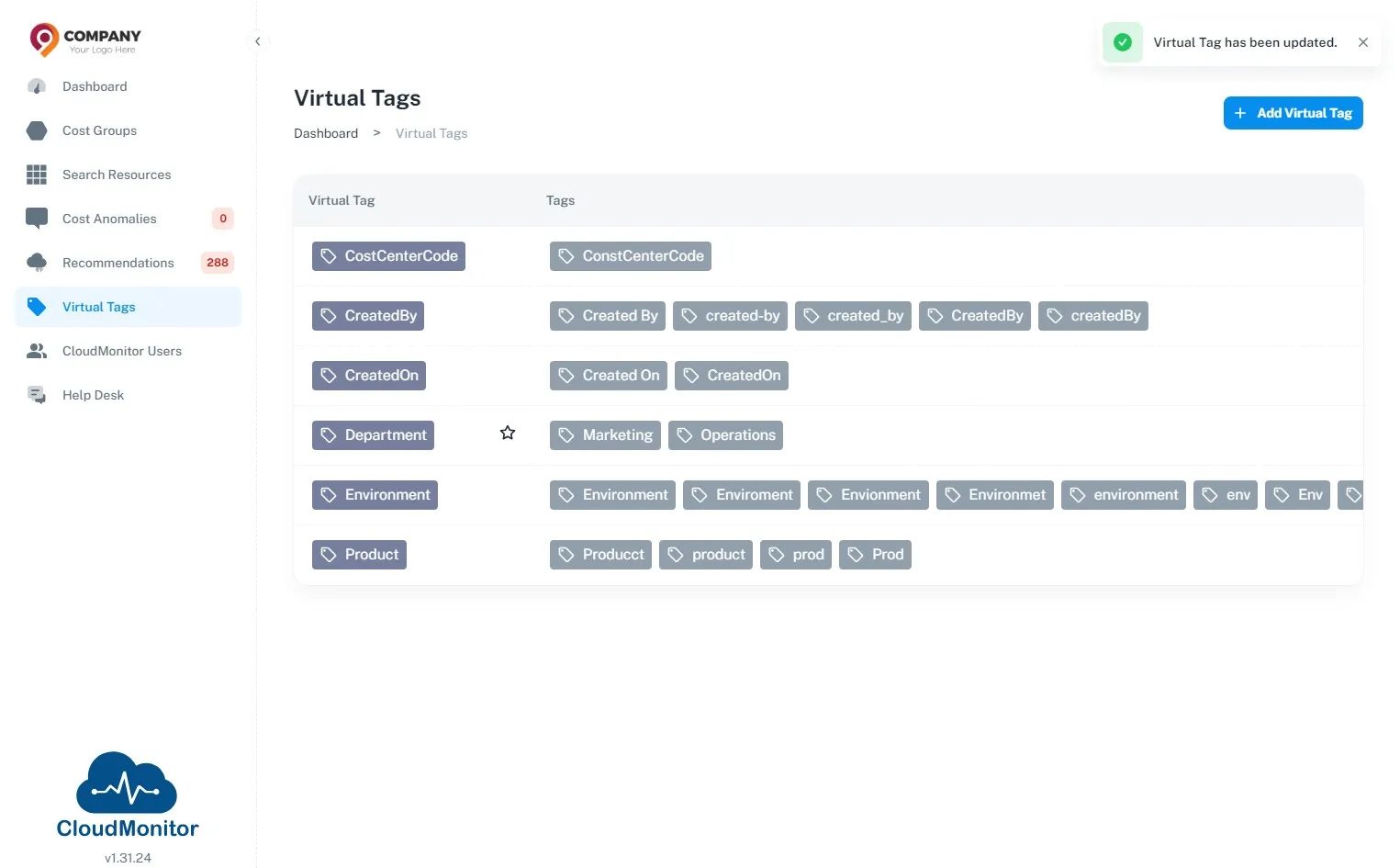
Section titled “Step 1”Navigate to Admin App and Click “Virtual Tags”.
Step 2
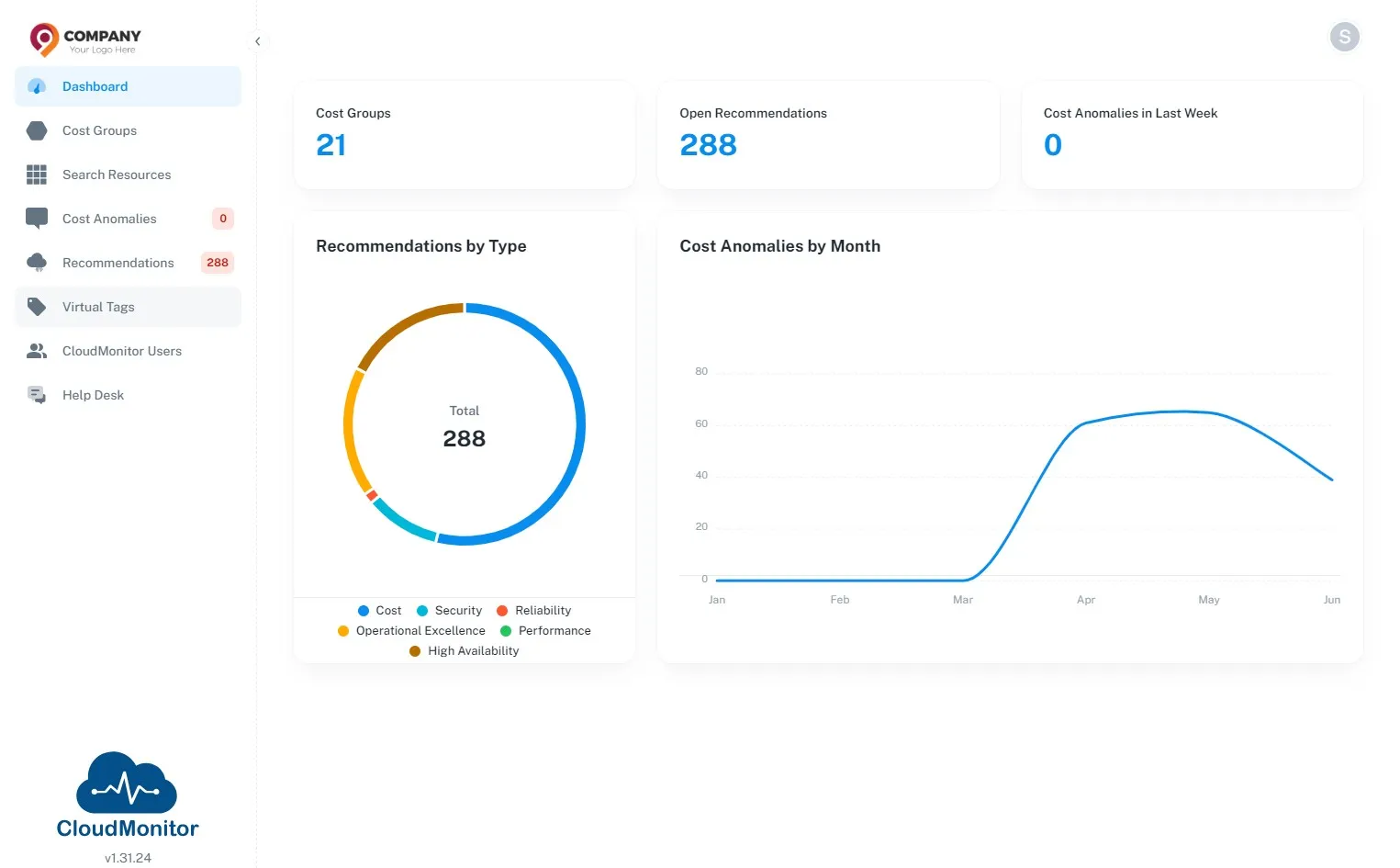
Section titled “Step 2”Click “Add Virtual Tag”.
Step 3
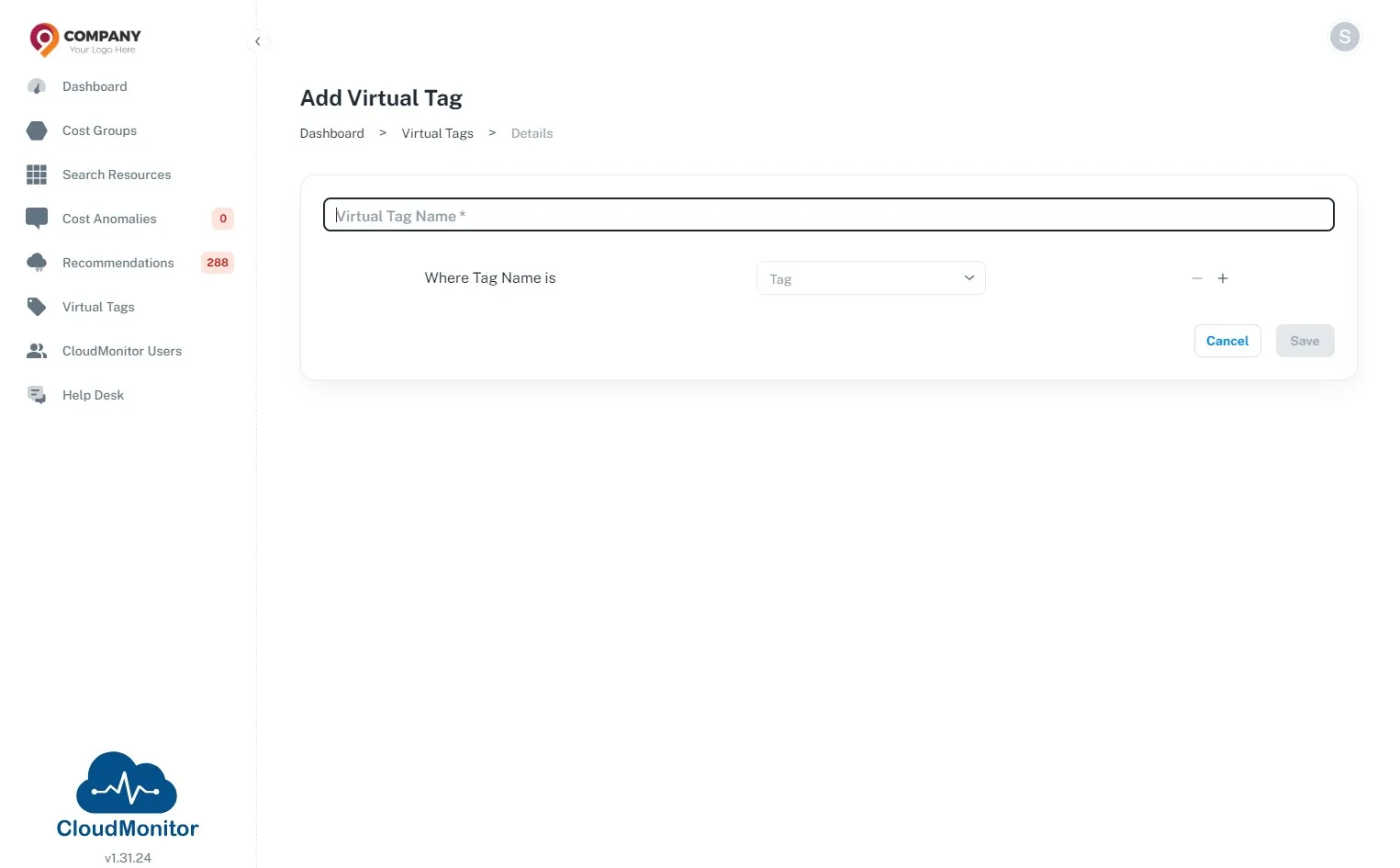
Section titled “Step 3”Enter a name for the Virtual Tag.
Note - This name will mention in the report instead of the wrong tag names.
Step 4
Section titled “Step 4”Select the wrong tag names which need to be normalised.
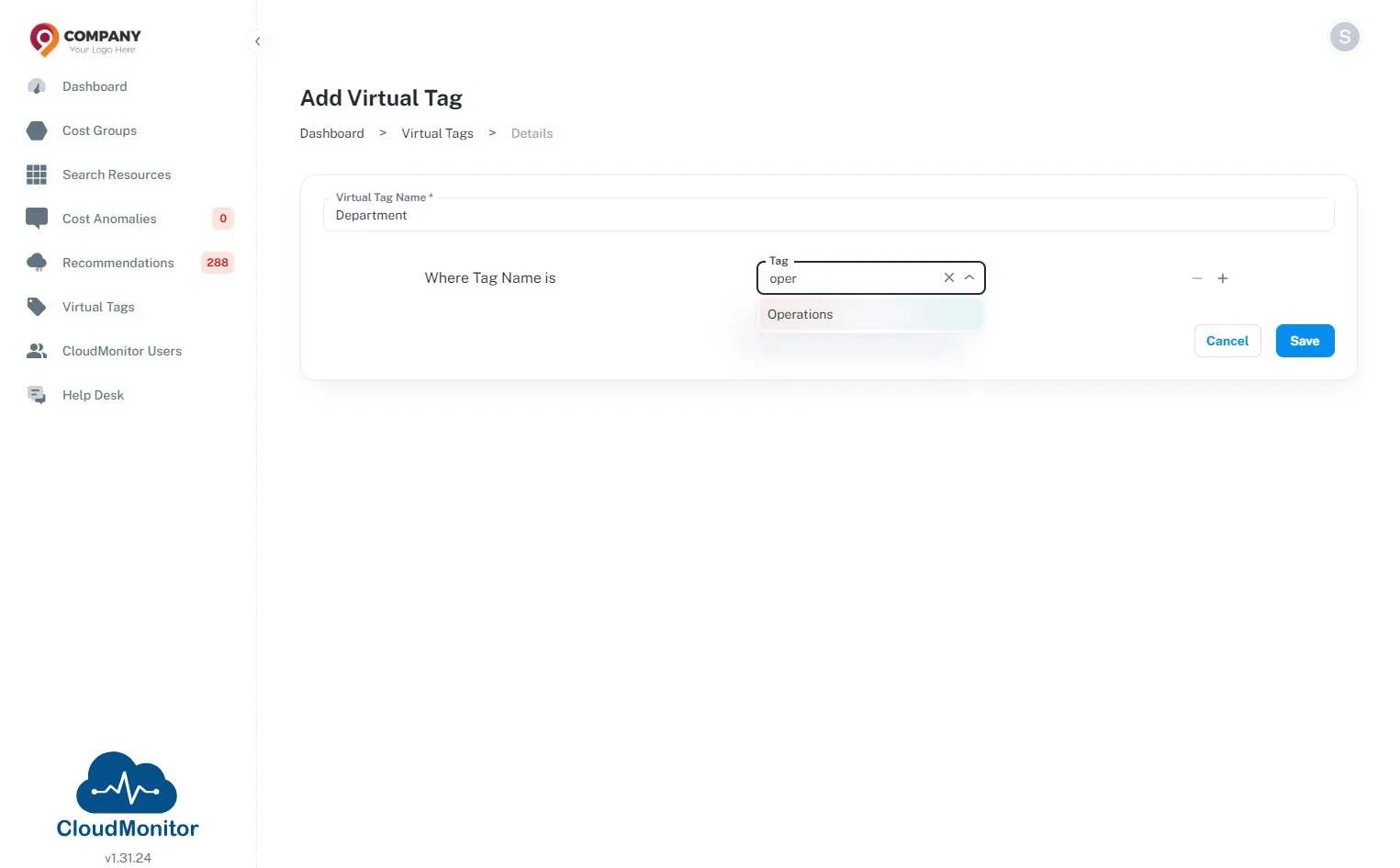
Step 5
Section titled “Step 5”Users can click this button to add other tags as well.
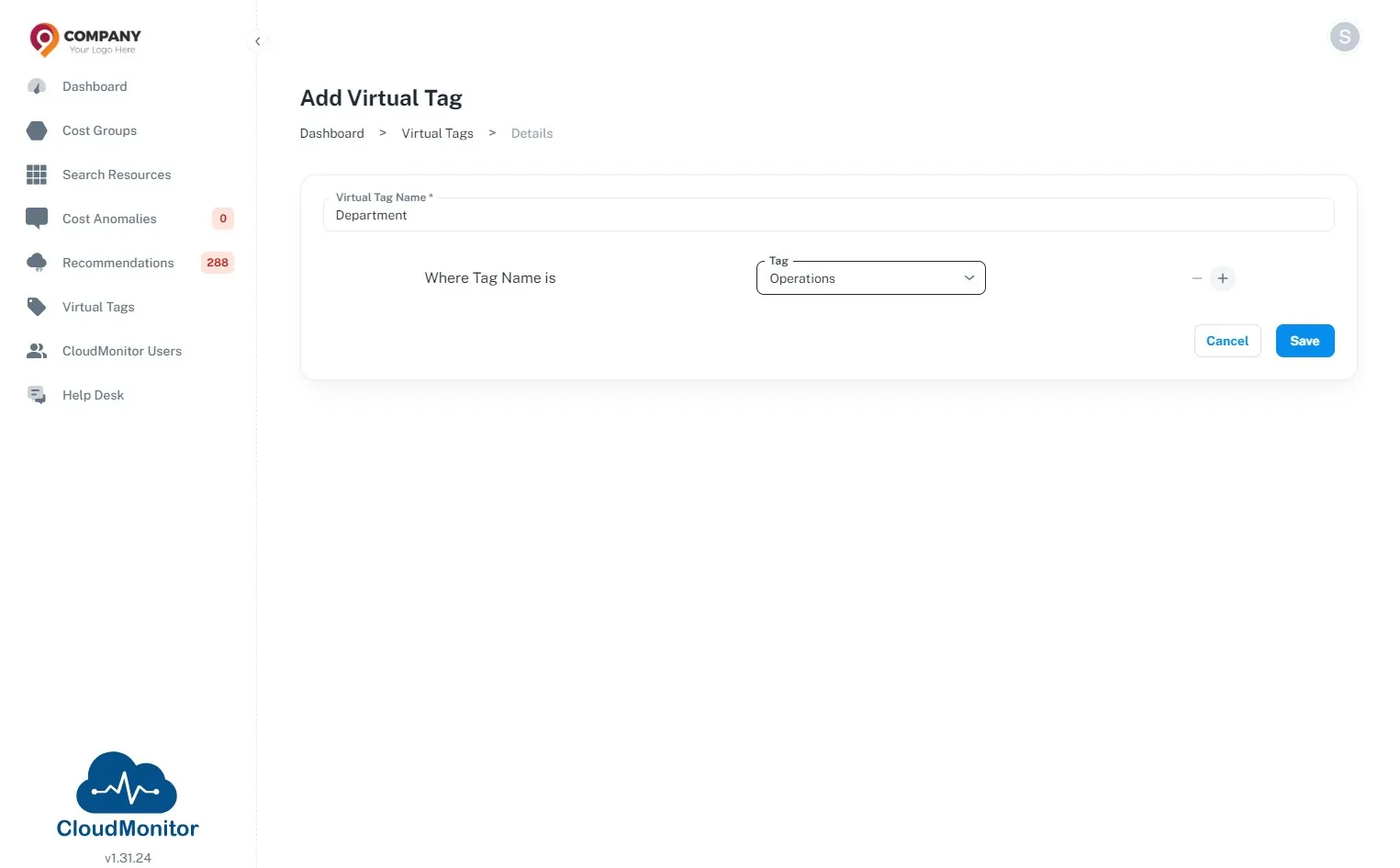
Step 6
Section titled “Step 6”Click “Save” after adding all the wrong tag names
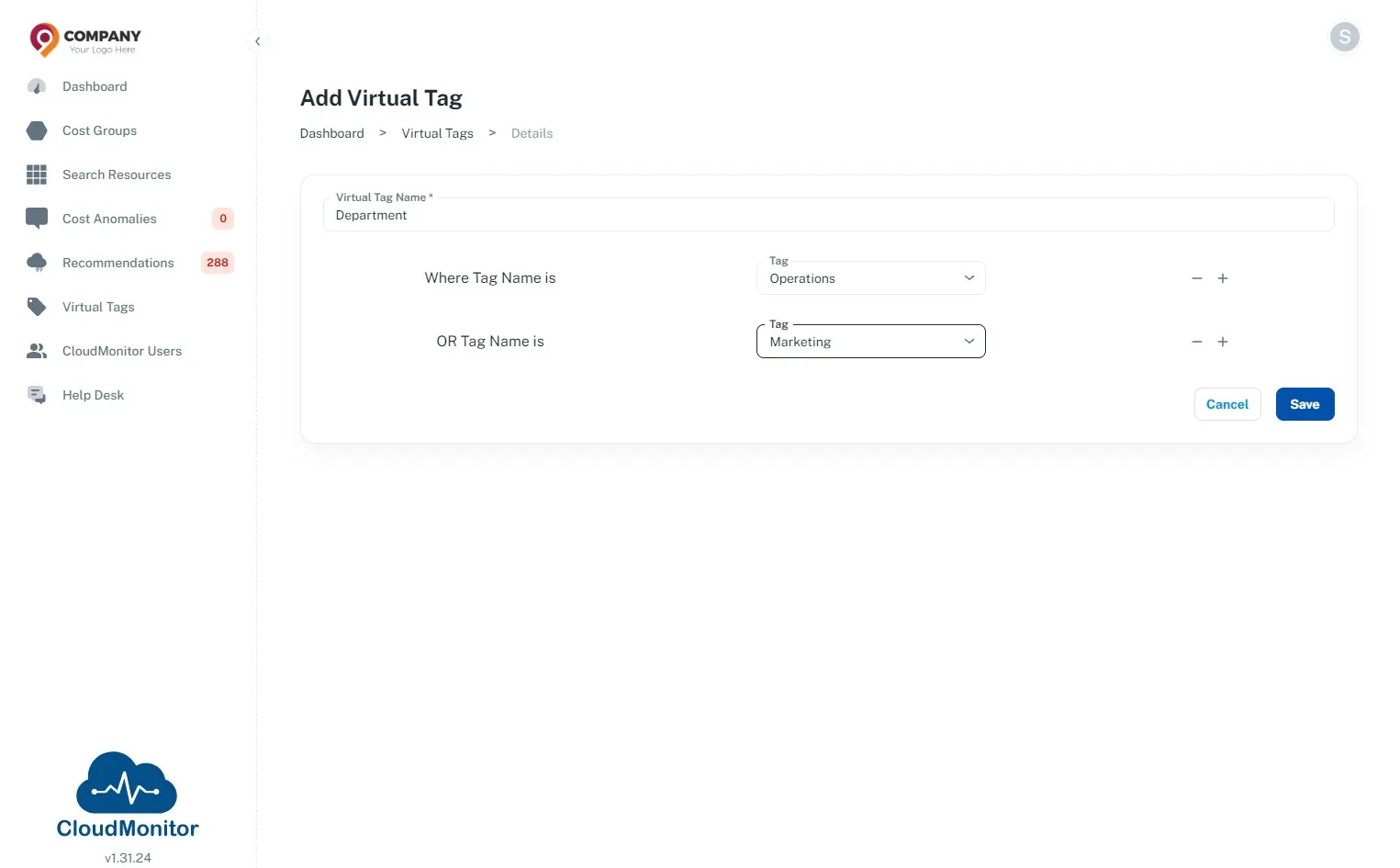
Step 7
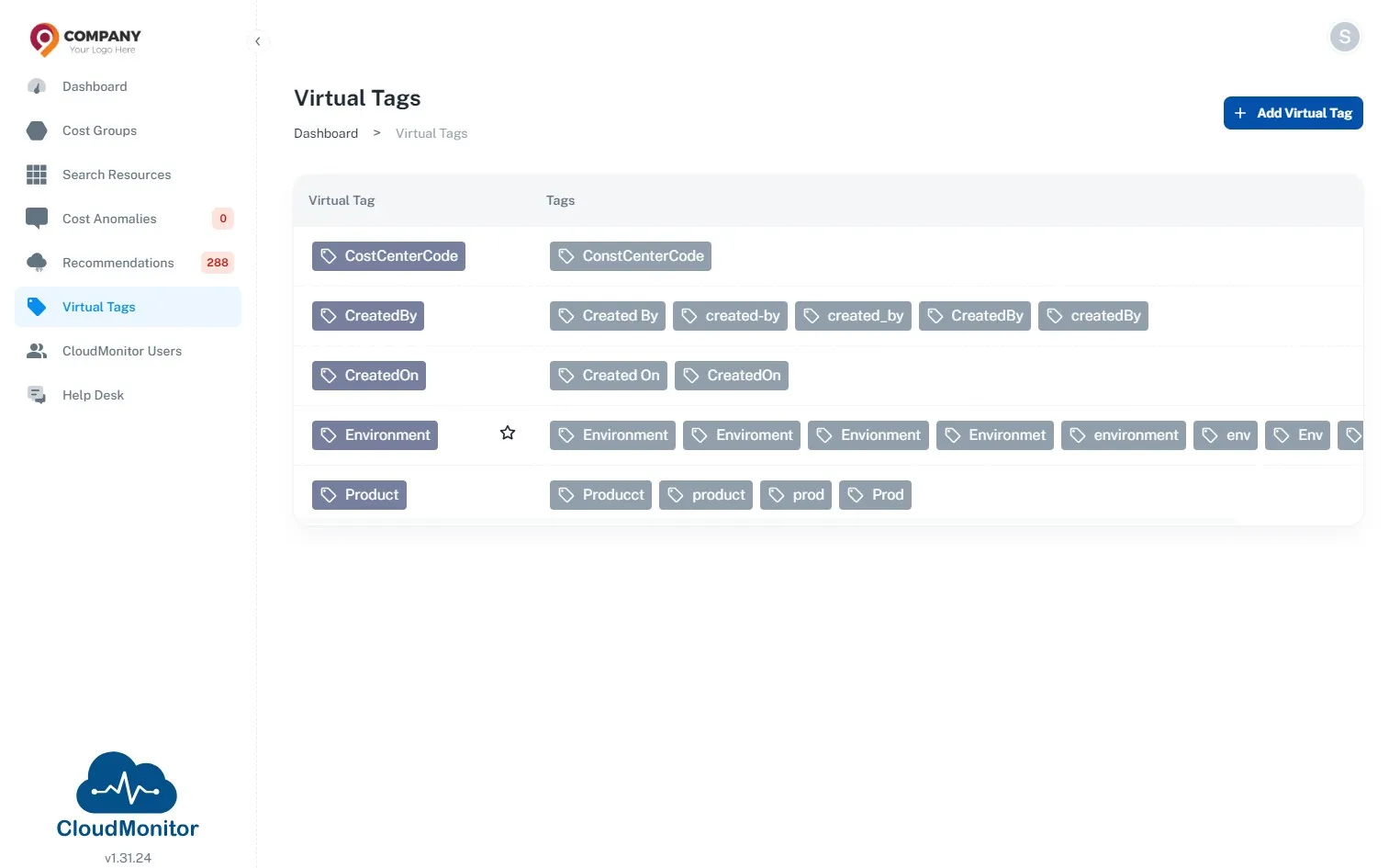
Section titled “Step 7”The virtual tag will appear here. Users can mark it as a favorite tag, and those tags will be displayed at the top of the Power BI report.
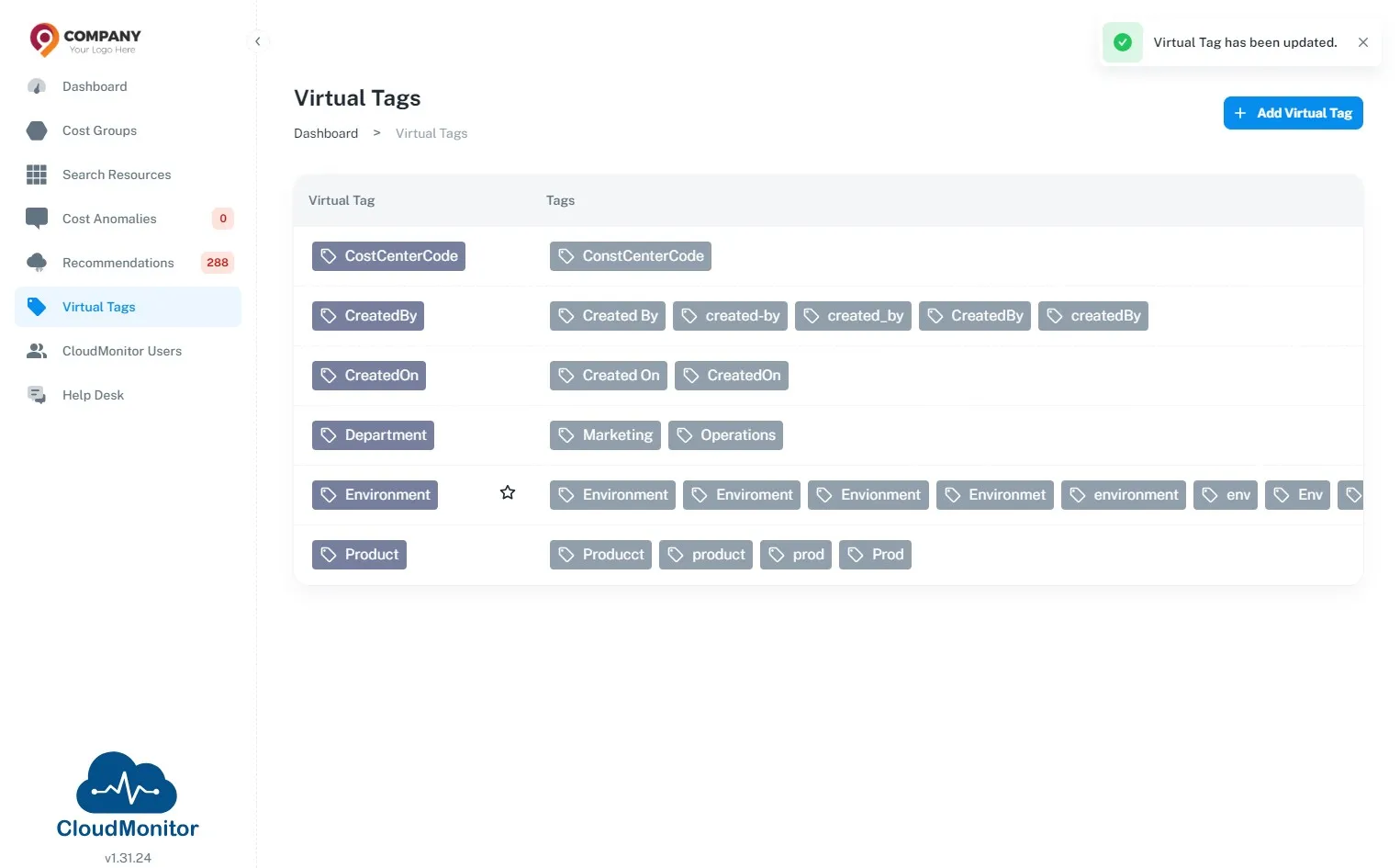
Step 8
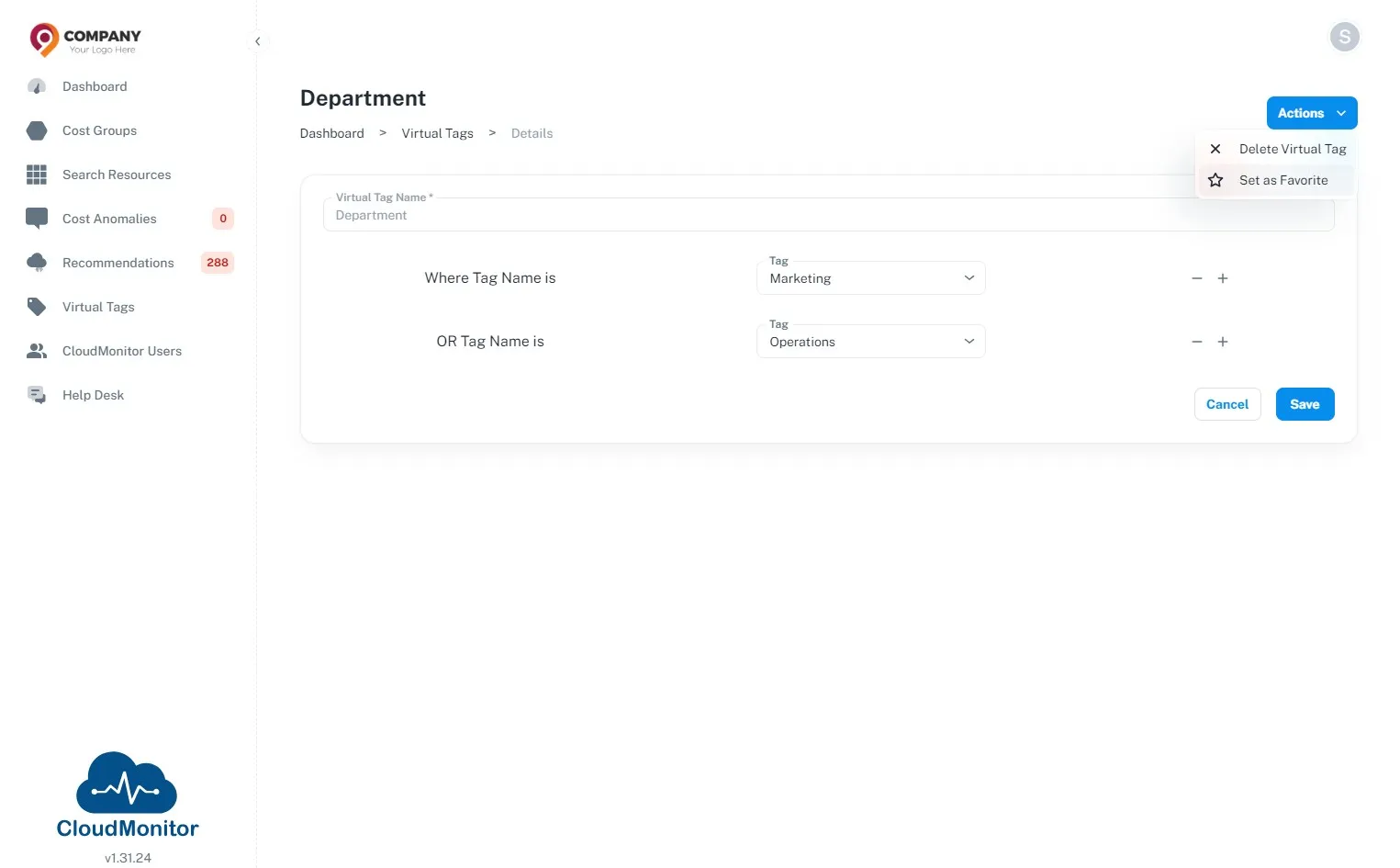
Section titled “Step 8”To mark it as favourites, click “Actions” and then click “Set as Favorite”
Step 9
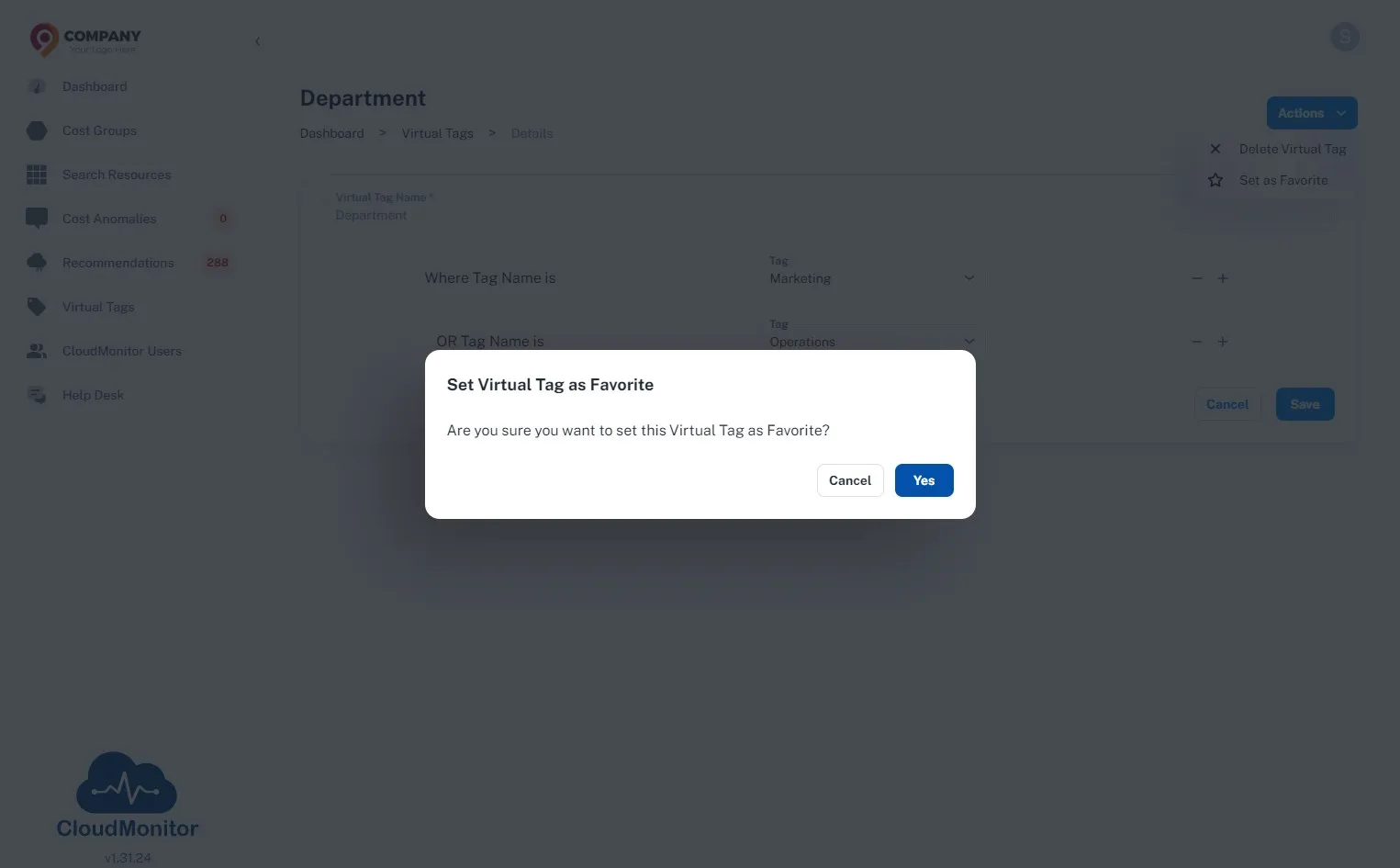
Section titled “Step 9”Click “Yes”
Step 10
Section titled “Step 10”Star icon will appear here once this virtual tag is marked as favourite.