How to allocate costs with rules
Allocation rules decide which cost group each charge belongs to. Get them right and every other report becomes trustworthy; get them wrong and you’ll spend months explaining numbers.
Everyone else can view this screen read-only, which is deliberate — understanding how spend is routed is useful to anyone, changing it is not.
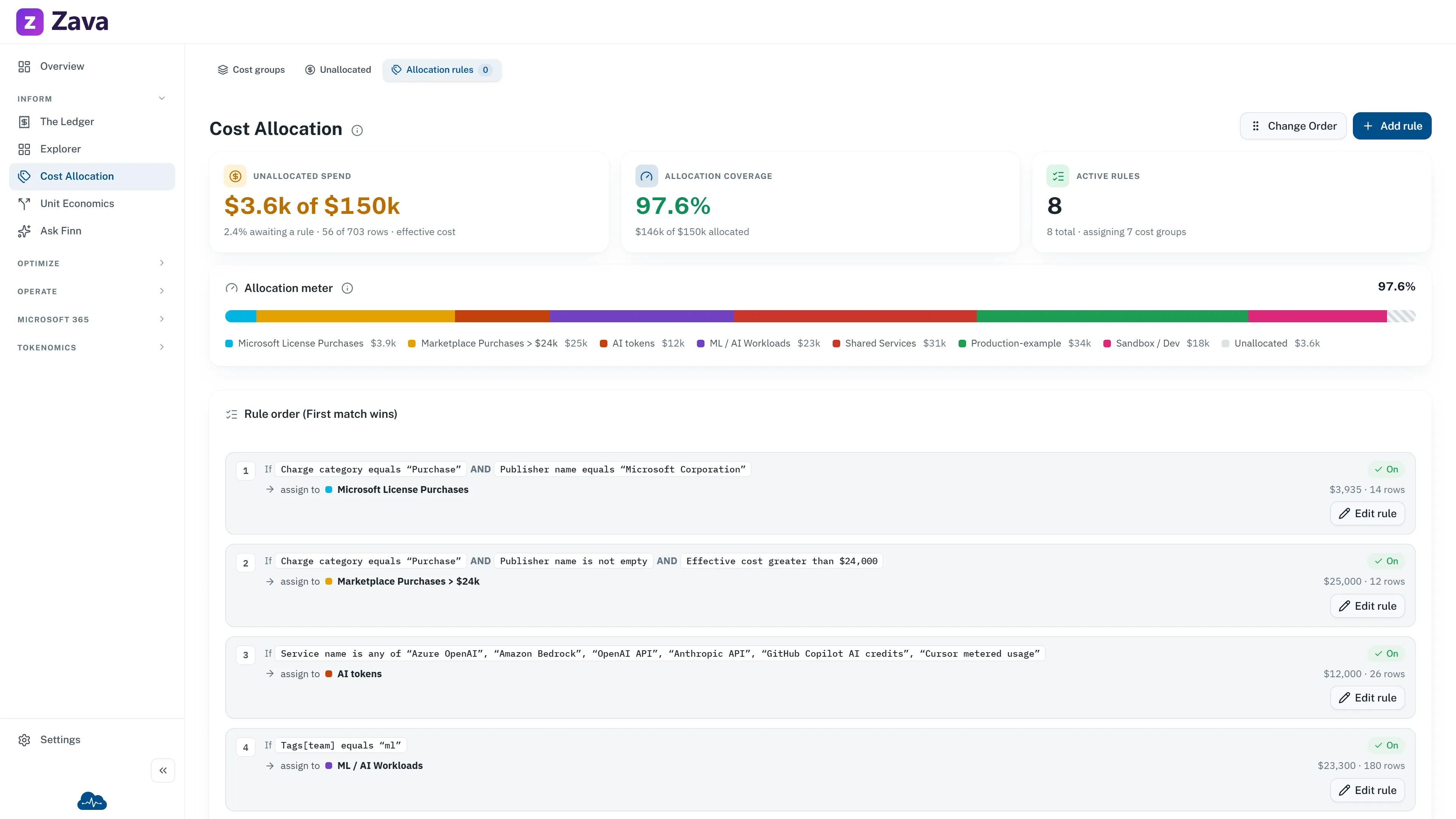
The one rule about rules
Section titled “The one rule about rules”Rules are evaluated in order, and the first match wins. The header says so: Rule order (First match wins).
Everything that surprises people follows from that:
- A broad rule above a narrow one means the narrow one never fires. Nothing errors. The numbers just quietly change.
- A charge lands in exactly one group. This is a division of the bill, not a set of tags.
- Anything no rule matches falls to the Unallocated catch-all, pinned last and not removable.
Add a rule
Section titled “Add a rule”Settings ▸ Allocation rules ▸ Add rule. It appears above the catch-all.
Each rule needs:
Conditions — up to five, built from a field, an operator and a value. Fields cover the shape of a charge: service, provider, subscription, resource name, resource group, region, charge type, tag, and the cost measures. With two or more conditions you choose whether all or any must match.
Assigned to — the cost group. The catch-all is never offered as a destination.
Operators run from equals and contains through starts with, in list, is empty and
matches regex, plus their negations. The value control changes to suit: a dropdown of real values
where the field has a manageable set, a multi-chip picker for lists, a plain box for fragments and
patterns, and nothing at all for is empty.
A regular expression that doesn’t compile is rejected as you type rather than at save.
Routing by naming convention
Section titled “Routing by naming convention”The most powerful option, and the least obvious.
Set a resource-name or reservation-name condition’s operator to contains the cost group code, and
the rule stops targeting one group. Instead it reads the _1234_ code out of the name and sends each
charge to whichever group carries that code.
One rule then covers your whole naming scheme. Adding a team means creating a group with a code, not writing another rule.
The screen shows a live preview of sample names under the rule — name, code found, group it resolves to, or that it falls through. It also warns if two groups share a code, because a code that matches more than one group can’t be routed.
Ordering
Section titled “Ordering”Reordering is behind an explicit mode: Change Order, drag, then Done to save or Cancel to revert.
The ordering that usually works: most specific first, most general last. Start with the rules that identify one team unambiguously, then the naming-convention rule, then broad fallbacks. The catch-all is already pinned at the bottom.
Saving
Section titled “Saving”Rules save automatically about a second after you stop typing. A badge shows Saving… then Saved.
Two things it will tell you instead:
- Not saved — fix errors — a condition is invalid, and the whole rule is held back rather than half-written.
- Not saved — retry — the save failed. Order changes are the exception; those save only when you press Done.
Rules marked Invalid
Section titled “Rules marked Invalid”An Invalid rule isn’t applying at all. Two causes:
- Its target group was archived or deleted. Repoint it, or delete the rule.
- It’s a conditional rule with no conditions, so it can’t match anything.
Either way its spend falls through to the next matching rule. Worth fixing promptly — an invalid rule is silently sending money somewhere you didn’t intend.
Credits, refunds and zero-value rows
Section titled “Credits, refunds and zero-value rows”An Edge-case policies card decides what happens to these. The default — Follow the same allocation as the charge (default) — keeps a refund with the spend it relates to, which is what you want for chargeback. The alternatives send them to Unallocated or exclude them from the division entirely.
Deleting
Section titled “Deleting”Permanent. Unlike cost groups there’s no archive and no restore, and the rule’s spend moves to the Unallocated catch-all. Disable it instead if you might want it back.
Checking your work
Section titled “Checking your work”Rules take effect on CloudMonitor’s next update, not immediately.
Afterwards, Unallocated Costs is the scoreboard — if the percentage fell, your rules are matching. If it didn’t, something you expected to match isn’t.