How to add your own logo
CloudMonitor can wear your branding instead of ours.
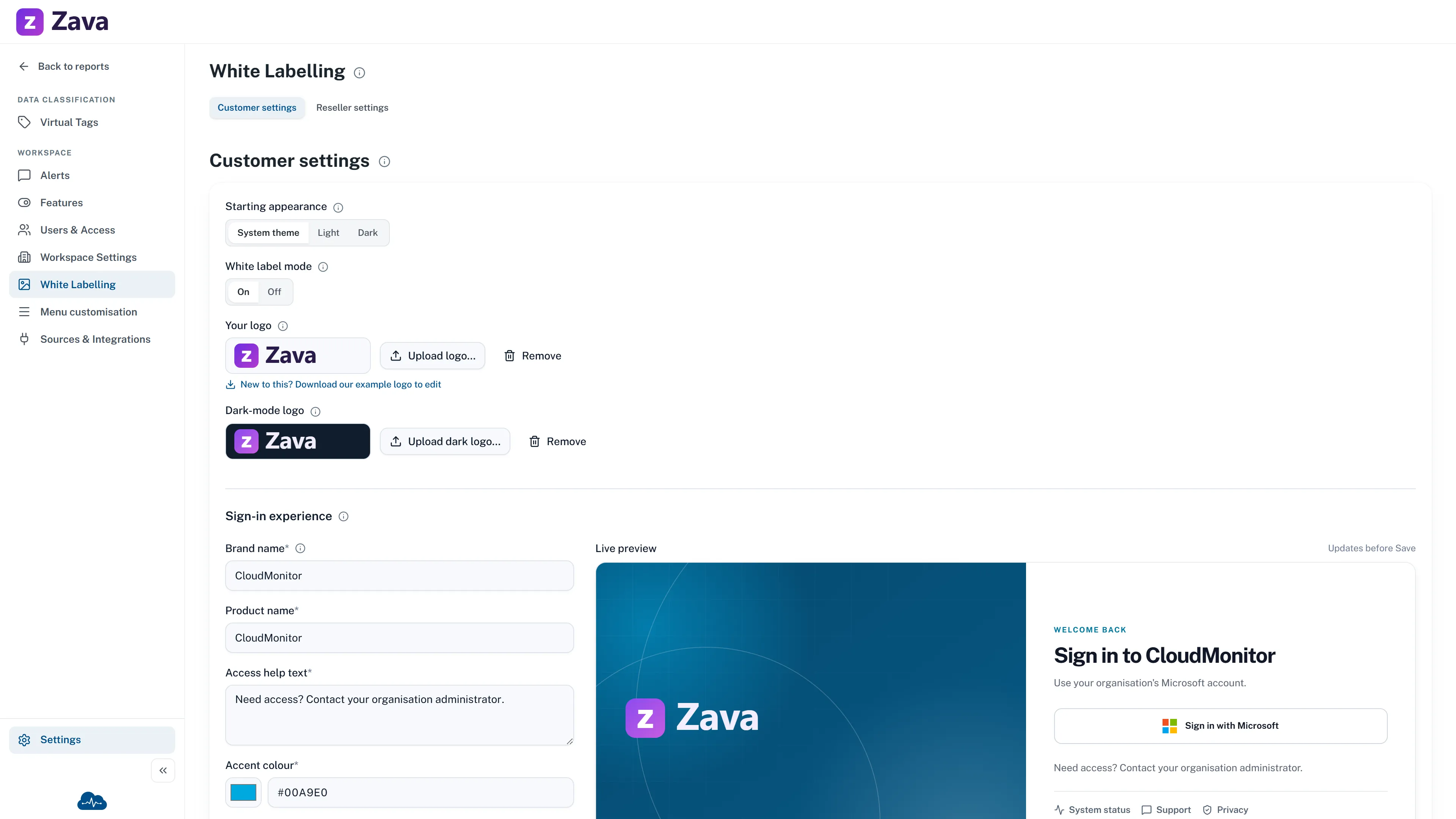
Settings ▸ Workspace Settings ▸ Branding.
Step 1 — Turn on white label mode
Section titled “Step 1 — Turn on white label mode”White label mode ▸ On. This is what tells CloudMonitor to show your logo in the top bar rather than ours.
Step 2 — Upload your logo
Section titled “Step 2 — Upload your logo”Your logo ▸ Upload logo…
Wide format works best — about 5:1, so roughly 500 × 100 pixels. It sits in the top bar, so a square logo will be scaled down to almost nothing.
Accepted: PNG, JPEG, SVG and WebP. Oversized PNG, JPEG and WebP files are shrunk automatically; an SVG has to be within the size limit already, because there’s nothing to shrink.
New to this? There’s a link to download an example logo you can edit as a starting point.
Step 3 — A dark-mode version, if you need one
Section titled “Step 3 — A dark-mode version, if you need one”Dark-mode logo is optional and previews on a dark swatch. Without one, your light logo is used in both themes.
You need it if your logo is dark text on transparent — that disappears entirely against a dark background. If your logo already works on both, skip it.
Step 4 — Save
Section titled “Step 4 — Save”Until you save anything:
No logo uploaded yet — the CloudMonitor logo stays until one is saved.
Removing it
Section titled “Removing it”Remove beside the logo, with a confirmation. CloudMonitor’s own logo comes back.
If the controls are inert
Section titled “If the controls are inert”If your CloudMonitor is provided through a partner, reseller mode may be on. The partner’s logo replaces the workspace logo while it’s active and the controls here are disabled, with a note saying so.
Your settings aren’t lost — they’re kept and apply again if reseller mode ends.
What branding doesn’t change
Section titled “What branding doesn’t change”The logo, and only the logo. Screen names, the menu, the documentation and the support links stay CloudMonitor’s. If you’re rolling this out to customers, set expectations accordingly.