How to connect Microsoft 365
Connecting Microsoft 365 brings tenant usage, licensing and security data into CloudMonitor alongside your cloud spend.
Before you start
Section titled “Before you start”You need a Global Administrator on the Microsoft 365 tenant to approve the consent. If that isn’t you, get them alongside you — the approval happens on Microsoft’s own screen and can’t be delegated from here.
Step 1 — Find the connector
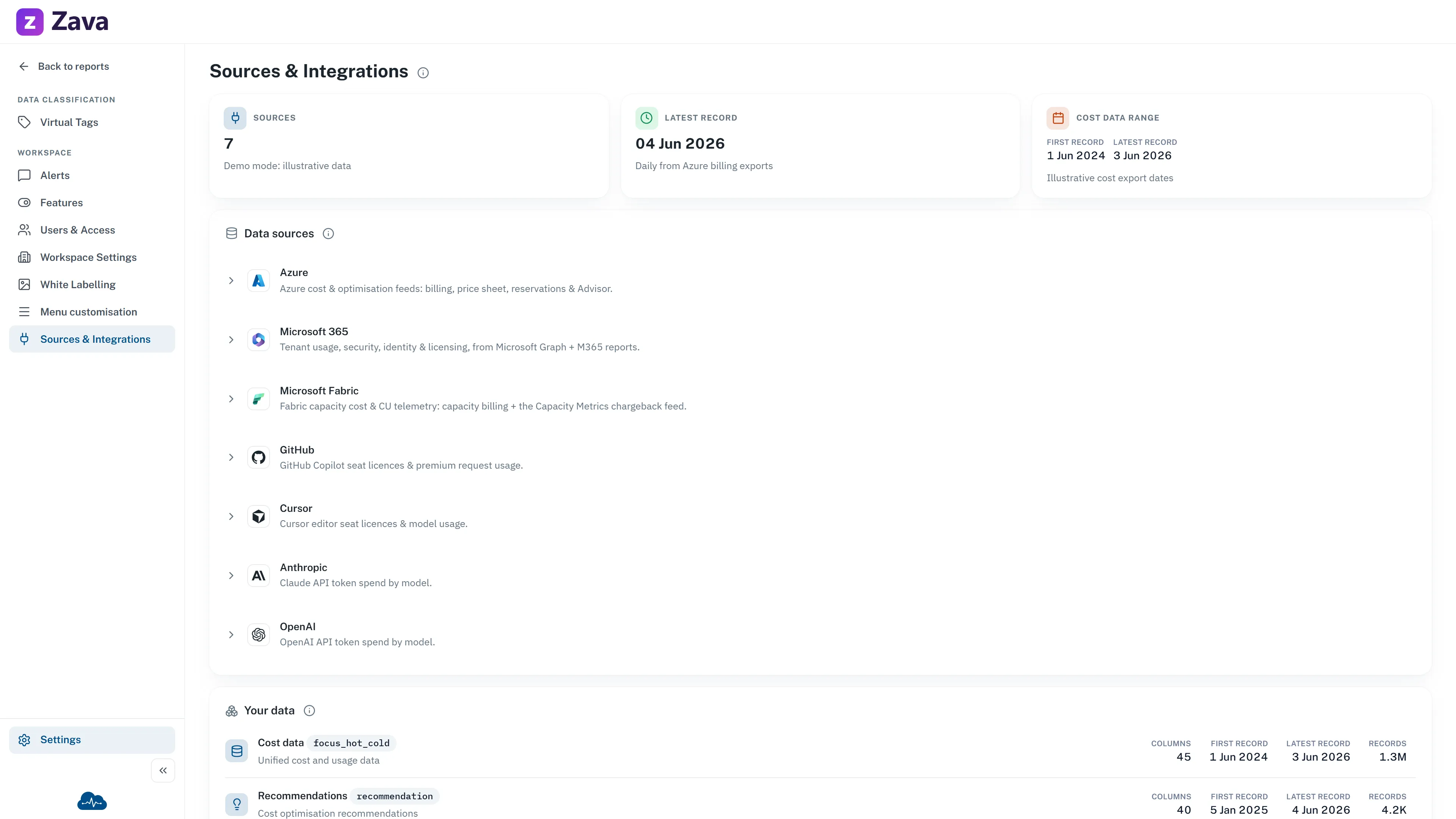
Section titled “Step 1 — Find the connector”Settings ▸ Sources & Integrations ▸ expand Microsoft 365.
If there’s no live data yet you’ll see Connect Microsoft 365 with a Connect button.
Step 2 — Check the tenant ID
Section titled “Step 2 — Check the tenant ID”The dialog asks for your Microsoft Entra tenant ID:
The tenant that owns your Microsoft 365 data. Pre-filled from your sign-in — change it if you administer a different tenant.
It’s pre-filled from your sign-in, so usually you leave it alone. Change it only if the Microsoft 365 tenant genuinely differs from the one you signed in with.
It’s a 36-character GUID. You’ll find it in the Entra admin center under Overview ▸ Tenant ID. Get it wrong and the button stays disabled with Enter a valid tenant ID first.
Step 3 — Review what you’re granting
Section titled “Step 3 — Review what you’re granting”The dialog lists every permission and why it’s needed. All of them are read-only: CloudMonitor never writes to your tenant and never stores a credential.
Worth actually reading rather than clicking past — it’s the list your security team will ask about, and it’s shorter than you’d expect.
Step 4 — Authorize
Section titled “Step 4 — Authorize”Authorize CloudMonitor opens Microsoft’s consent screen in a new tab. A Global Administrator approves it there.
Step 5 — Wait for the first sync
Section titled “Step 5 — Wait for the first sync”Back in CloudMonitor the row shows Authorization pending until data arrives, which happens on the next daily sync rather than immediately.
The flag clears itself once real data lands. If it’s still pending after a couple of days, the consent probably wasn’t completed — run through it again.
If it says “Not configured”
Section titled “If it says “Not configured””The connector hasn’t been enabled for your workspace at the platform level, which isn’t something an admin can change here. Contact support.
The other connectors
Section titled “The other connectors”GitHub, Cursor, Anthropic and OpenAI appear as sources when the Tokenomics module is on, and Azure is always there as the core cost feed.
Microsoft 365 is the only one with a self-service connect flow. The others show their current status — a provider counts as connected once real data is arriving — but they’re set up outside the app. Contact support to have one enabled.
Checking it worked
Section titled “Checking it worked”The Your data card on the same screen lists the tables CloudMonitor reads, with live row counts. It’s the quickest way to confirm data is genuinely flowing rather than just consented.