How to set a budget
A budget in CloudMonitor is a target with alerts attached. It tells you when spend crosses a line; it never stops anything.
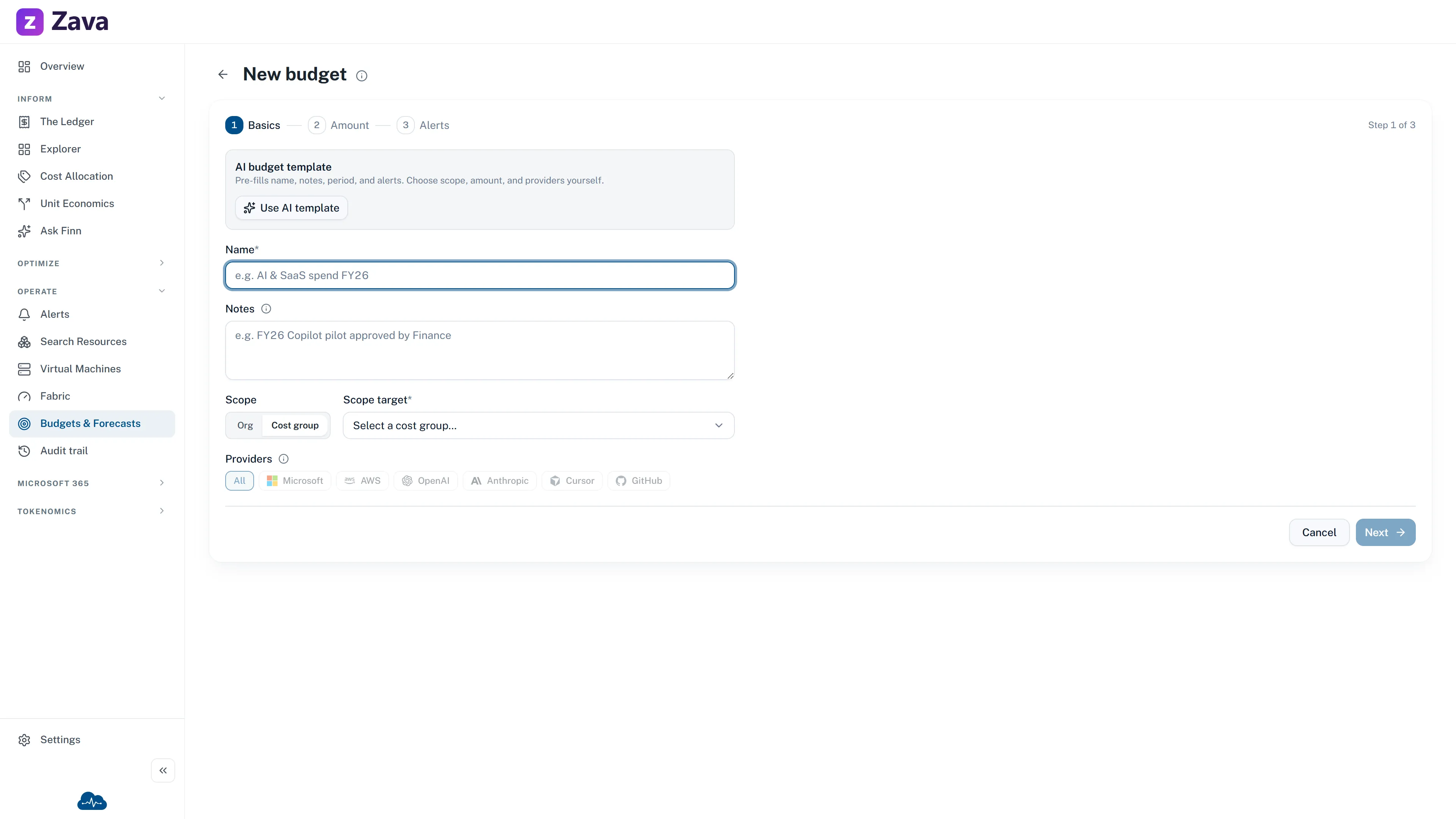
Step 1 — Basics
Section titled “Step 1 — Basics”Settings ▸ Budgets ▸ New budget.
Name — up to 50 characters, e.g. AI & SaaS spend FY26. Name it after what it covers and the
period, because you’ll have several.
Amount — a whole number greater than zero. No decimals.
Currency — read-only. Budgets use the workspace reporting currency. If it’s wrong, change it before creating the budget rather than after — see how to set your currency and financial year.
Period — Monthly, Quarterly or Annual. This is the budget’s own cycle and it is not affected by the top-bar date filter.
Step 2 — Scope
Section titled “Step 2 — Scope”Scope — Org or Cost group. Org is offered to admins only.
Scope target — which cost group. The picker offers only groups you can manage. An org-scoped budget shows Whole organisation and needs no target.
Providers — optional. Leave everything unticked to track total spend in scope; tick specific providers to budget just those. Only providers with actual spend in your data appear.
Narrowing to providers has a side effect worth knowing: the pacing chart on Budgets & Forecasts doesn’t apply to budgets with a provider set.
Step 3 — Alerts
Section titled “Step 3 — Alerts”Alerting basis — Accrued (usage priced up, near-daily) or Billed (invoice-confirmed).
Accrued is the right default for alerting. Waiting for an invoice to tell you you’re over is waiting until it’s too late to act. Billed is for reconciliation.
Alert thresholds — each is a type, a percentage and one or more channels.
- Actual fires when spend already incurred crosses the percentage.
- Forecasted fires when the projected run rate crosses it.
CloudMonitor starts you with a sensible set: Actual at 50%, 80% and 100%, plus Forecasted at 100%.
Percentages can be anything from 0.01% to 1000%, and they don’t have to ascend — Actual 80 and Forecasted 80 together is perfectly reasonable.
Each threshold also carries channel toggles — Teams, Email, Webhook.
Step 4 — Create
Section titled “Step 4 — Create”Create budget. Nothing is saved before this.
Editing later
Section titled “Editing later”Settings ▸ Budgets ▸ the row’s ⋮ menu. Editing is a single page with the same fields.
The currency trap
Section titled “The currency trap”If a budget’s stored currency differs from the workspace reporting currency, it can’t be evaluated. The list shows Requires repair instead of an amount, and editing raises Currency conversion required.
CloudMonitor never converts currencies. Save stays disabled until you retype the amount in the new currency and tick the box confirming you converted it yourself. That’s friction on purpose — a silently wrong exchange rate in a budget is worse than a blocked save.
Change the reporting currency and every budget set in the old one needs this treatment. Do it deliberately, not casually.
What a budget does not do
Section titled “What a budget does not do”It doesn’t cap, block or throttle anything. Crossing 100% notifies people and nothing else. If you need a hard limit, that’s a control in your cloud provider.
Alerts are also evaluated against the budget’s own period and scope, which is why the top-bar filters are grayed out on the Budgets report — see Budgets & Forecasts.