Getting help
Most questions have an answer a hover away, so try the in-app help before going looking.
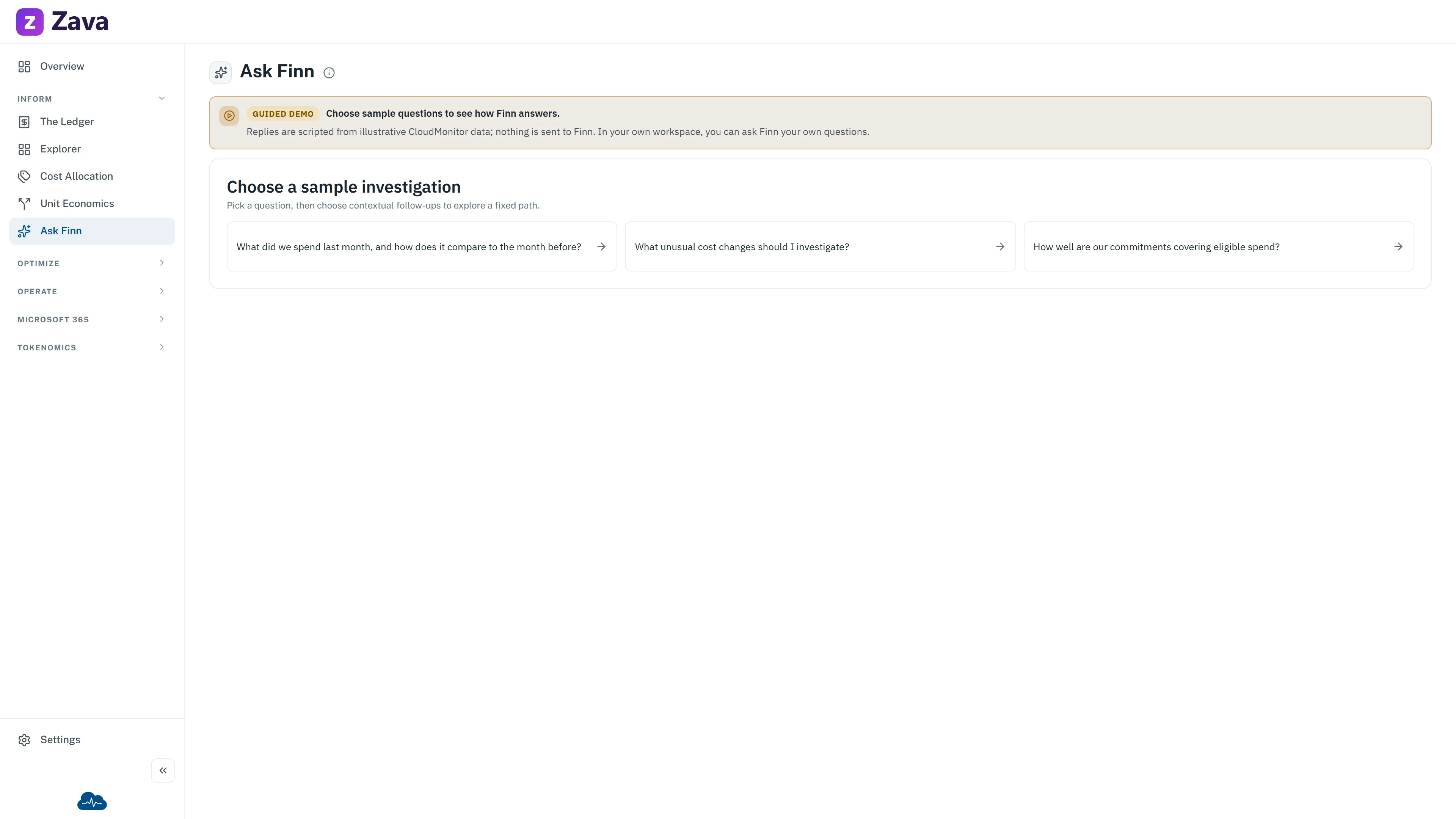
The ⓘ beside a page title
Section titled “The ⓘ beside a page title”Every report title has a small ⓘ next to it. Hover it and you get a sentence or two on what the page is for, where its numbers come from, and any caveat worth knowing. It is written by the people who built the screen and updated with it, which makes it the most reliable explanation in the product.
Form fields have the same thing — hover the marker beside a label before guessing what a field wants.
Help & support
Section titled “Help & support”At the bottom of the menu, Help & support opens five options:
| Option | What it does |
|---|---|
| Documentation | These pages |
| Product tour | Replays the guided walkthrough of the main reports |
| Setup checklist | Re-opens the getting-started steps — admins only |
| Contact support | Chat to us or raise a ticket |
| System status | Whether CloudMonitor itself is healthy |
The product tour
Section titled “The product tour”CloudMonitor runs a short guided tour the first time you sign in. It walks through finding your way around, filtering by provider, grouping costs into a business hierarchy, The Ledger, allocating your spend, and staying ahead of surprises.
You can replay it any time from Product tour — it always returns to the Overview first so every step has something to point at.
The setup checklist
Section titled “The setup checklist”Admins get a checklist covering the five things worth doing first: take the tour, create your first cost group, allocate your costs, set a budget, and add your team. It ticks itself off as you go, and Setup checklist re-opens it if you dismissed it early.
If you’re not an admin you won’t see this — those steps aren’t yours to do.
Send feedback
Section titled “Send feedback”Just above Help & support. It opens an email to the CloudMonitor team. Use it for “this is confusing” or “I wish it did X”; use Contact support for “this is broken”.
Try things without consequences
Section titled “Try things without consequences”Two safe places to experiment:
- Demo mode, on your profile page, swaps the whole app onto sample data from a fictional company. Nothing you do there is saved, and nothing touches your real spend.
- demo.cloudmonitor.ai is the same thing with no sign-in at all. Useful for showing a colleague what a screen looks like before they have access.
If a report looks empty or wrong
Section titled “If a report looks empty or wrong”Before raising a ticket, check the two things that explain most surprises:
- The Period. A window with no data in it produces an empty report that is working perfectly.
- A recently created cost group. New groups show nothing until CloudMonitor’s next update — see filtering every report at once.
If a whole module is missing from your menu rather than empty, it is probably an optional one your organization hasn’t switched on. Each page in these docs says when that applies.