How to invite users and set roles
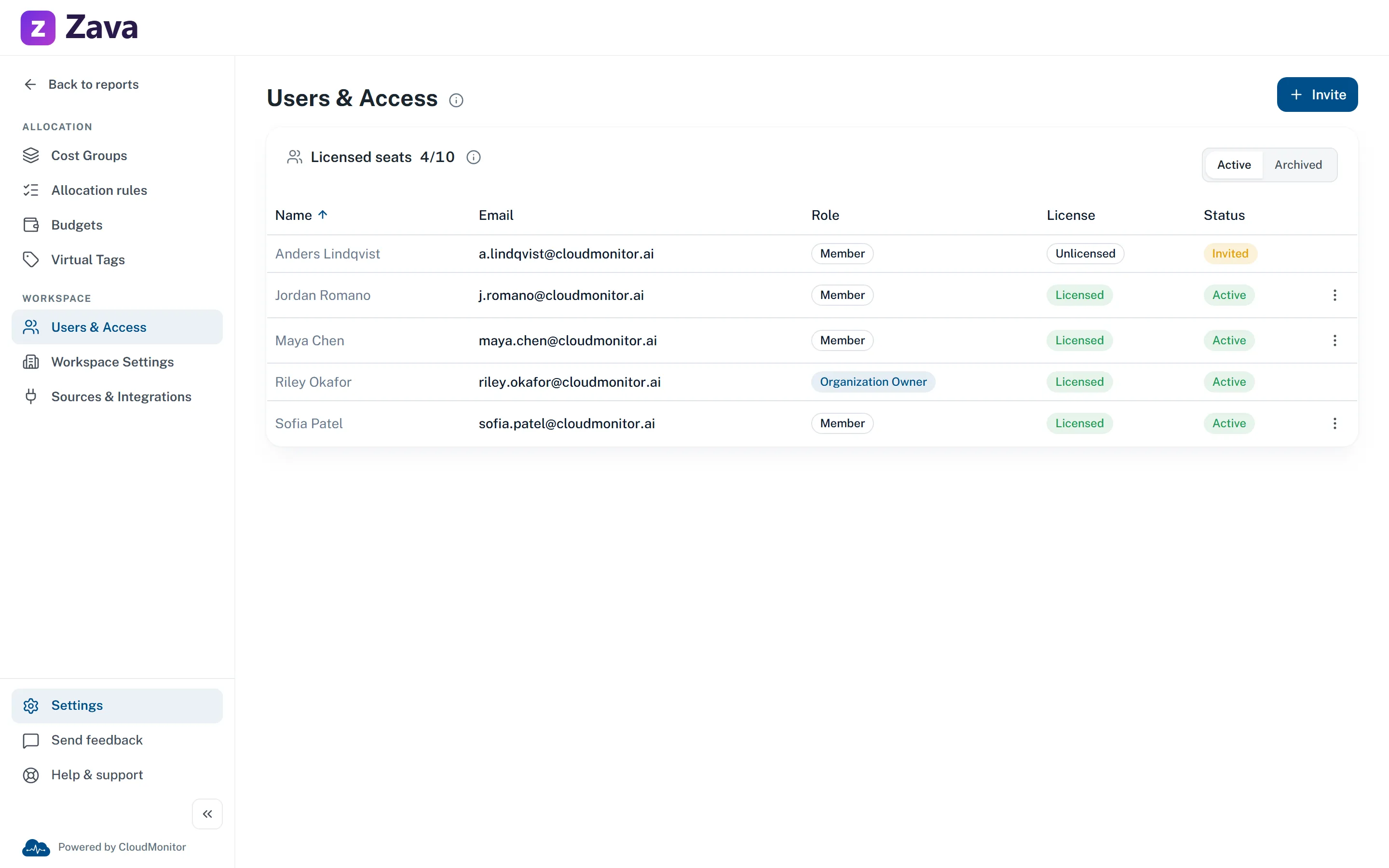
Settings ▸ Users & Access is where people get into CloudMonitor and where their workspace-level role is set.
Invite someone
Section titled “Invite someone”Invite user asks for:
Name and Email. One invitation per address: if someone on the list already has that email you’ll get A user with this email already exists. and the invite button stays disabled. Change what they can do from their own row instead of inviting them a second time.
Archived people are the exception — they’re not on the list, so the check doesn’t see them. Bring someone back with Restore user on the Archived tab rather than re-inviting them, which keeps their history attached to the same person.
Role — Member or Admin. Member is right for almost everyone; admin is a workspace-wide power, not a seniority marker. See Roles and access.
Assign license — on by default, showing how many seats remain. The app’s own wording is worth taking literally:
Assign a license when the user is ready to sign in and use CloudMonitor. Without a license, they cannot log in or view the app.
So an unlicensed invitation is a placeholder, not restricted access. It reserves the person’s place — their role and cost group membership are recorded — but they cannot get in at all until a license is assigned.
Cost groups — tick the groups they should join. You’ll see the groups you own, plus the built-in Unallocated group, which is pre-ticked and can’t be unticked.
Pre-ticking cost groups at invite time is worth doing. Membership is staged against their email address, so the team list is correct before they ever sign in.
Licenses and seats
Section titled “Licenses and seats”The card header shows Licensed seats used against your plan.
When they run out, the invite dialog says so and the assign option is disabled. Two ways forward: Revoke license from someone who no longer needs one, or add seats via Billing.
Revoking a license doesn’t remove the person — they stay in the list, unlicensed. But it does lock them out: without a license they can’t sign in at all.
So revoke from someone who has genuinely stopped needing CloudMonitor, and archive anyone who has left the organization. Archiving is the one that also removes their access to every cost group.
Changing someone’s role
Section titled “Changing someone’s role”The row’s ⋮ menu: Make admin / Make member, Assign license / Revoke license.
Each asks for confirmation and spells out the consequence, because the effects aren’t always obvious — making someone an admin gives them every cost group, not just a settings menu.
When someone leaves
Section titled “When someone leaves”Archive user, not delete.
Archiving stops them signing in, releases their seat, and removes them from every cost group team — while keeping their history. Their comments, their triage decisions and the record of what they changed stay intact in the audit trail.
Their old cost group memberships are retained as records but grant no access whatsoever, even though the rows remain.
Restore user on the Archived tab brings them back if they return.
Deleting would tear holes in the audit trail — which is why it isn’t offered.
The Organization Owner
Section titled “The Organization Owner”Whoever first set the workspace up carries the Organization Owner badge. They have no menu at all: they can’t be demoted, unlicensed or archived.
That’s a safety catch, not a privilege. It means a workspace can never end up with nobody able to administer it.
Access to costs is separate
Section titled “Access to costs is separate”Being in CloudMonitor doesn’t grant sight of any spend. That comes from cost group membership.
A new Member sees only the groups they’re in, plus the Unallocated group everyone gets automatically. To give someone a team’s costs, add them to that cost group — see how to manage a cost group team.
Admins are an exception: they see every group.