Inside a cost group
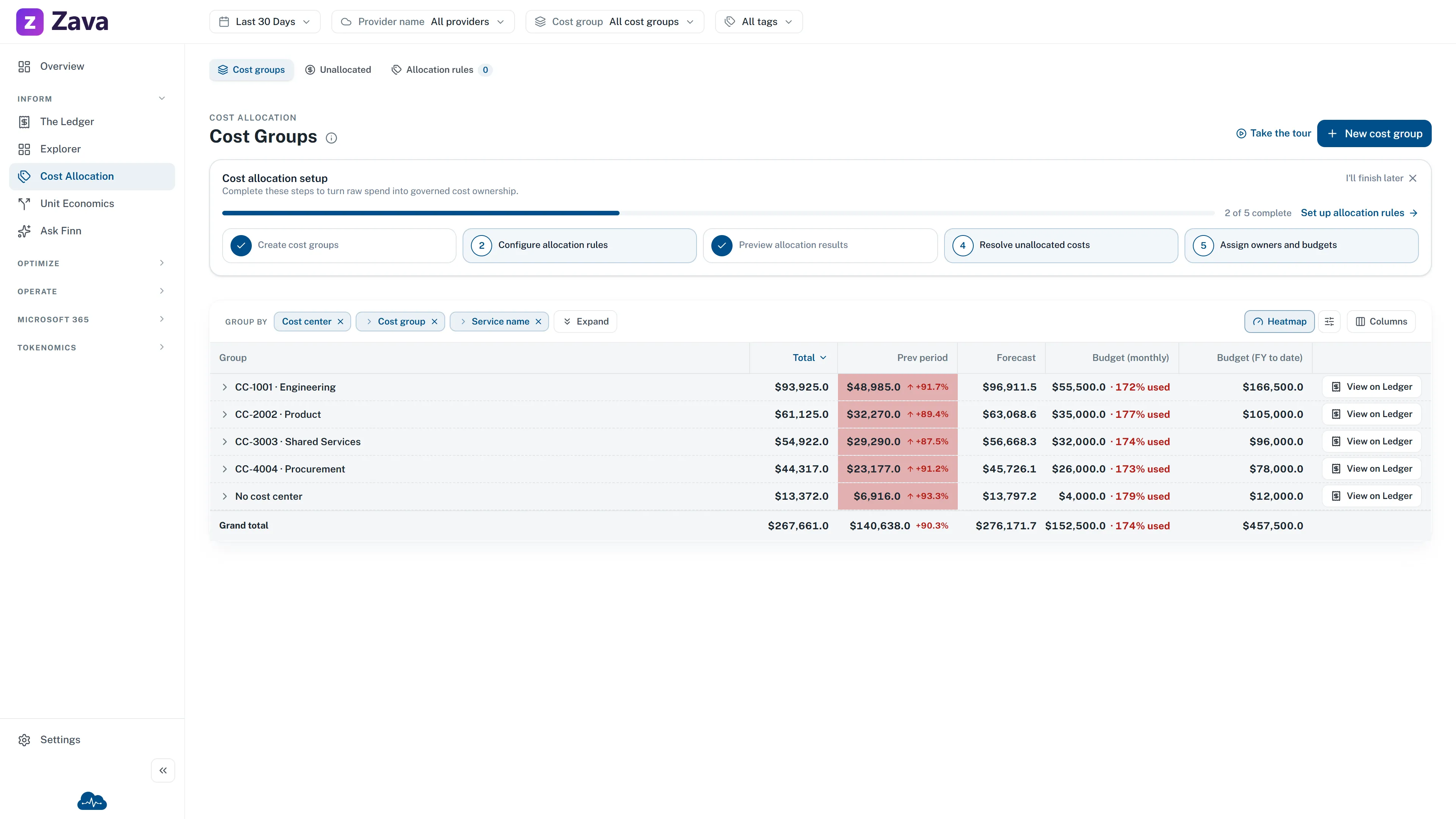
The full picture for one cost group. You get here by clicking a group anywhere it appears — the Cost Groups report, a chart segment, a link someone sent you.
This is the page to open before a conversation with the team that owns the spend, because everything they’ll ask about is on it.
Seven tabs
Section titled “Seven tabs”| Tab | What’s on it |
|---|---|
| Current FY | The financial-year scorecard — spend to date, latest month, monthly budget, forecast |
| Costs | The group’s spend broken down and over time |
| Actions | Savings opportunities and anomalies attributed to this group |
| Resources | What the group actually owns |
| Governance | Its budget |
| Members | Who’s on the team, and in what role |
| Audit trail | What changed, when, and who did it |
Current FY, in detail
Section titled “Current FY, in detail”Four figures lead: Actual cost to date (FY), the latest month, the monthly budget, and this month’s forecast.
Below them, Actual vs forecast charts monthly spend against a Budget line, so you can see not just whether you’re over but when you started heading that way.
The Cost group details card carries the facts people ask for: Monthly saving available, recommendation and anomaly counts, the owner, and Created on.
Then breakdowns by subscription, resource group and region.
The financial year here is your organization’s, set under Settings ▸ Workspace Settings — not the calendar year.
The Period filter doesn’t apply
Section titled “The Period filter doesn’t apply”This page reads the group’s full history plus a financial-year scorecard, so a top-bar date range would contradict what’s on screen. CloudMonitor hides the Period chip rather than showing one that does nothing.
The cost group chip is hidden too, for the obvious reason: you’re already looking at one group.
Your cost basis still applies, and the card labels say which one they’re using.
What’s read-only here
Section titled “What’s read-only here”Governance shows the budget but doesn’t edit it — budgets are managed under Settings ▸ Budgets so there’s one place they’re created and changed.
Members shows the team but doesn’t change it. Manage team, in the page header, is where that happens — and only if you can manage the group.
Both are deliberate: this is a reporting page, and having two places to edit the same thing is how they drift apart.
Audit trail
Section titled “Audit trail”Budget changes, membership changes, triage actions and team comments, with who and when.
This is the tab to open when someone asks why a budget moved, or why an anomaly was dismissed. It’s also why archiving a departing user is better than deleting them — deleting would leave holes here.
If you can’t open it
Section titled “If you can’t open it”You need to be a member of the group, or an admin. Otherwise CloudMonitor says you don’t have access and points you at an admin or the group’s owner. See Roles and access.
If the cost panels fail but the rest loads
Section titled “If the cost panels fail but the rest loads”You’ll see a message saying the cost panels couldn’t load while membership and ownership details are unaffected. That’s accurate rather than partial — the group’s configuration comes from somewhere different to its spend, so one can be unavailable while the other is fine.