How to customize your homepage
The Overview ships with a sensible default, but it’s the page you’ll look at most — so it’s worth making it yours.
Your layout affects only you. Nobody else’s Overview changes.
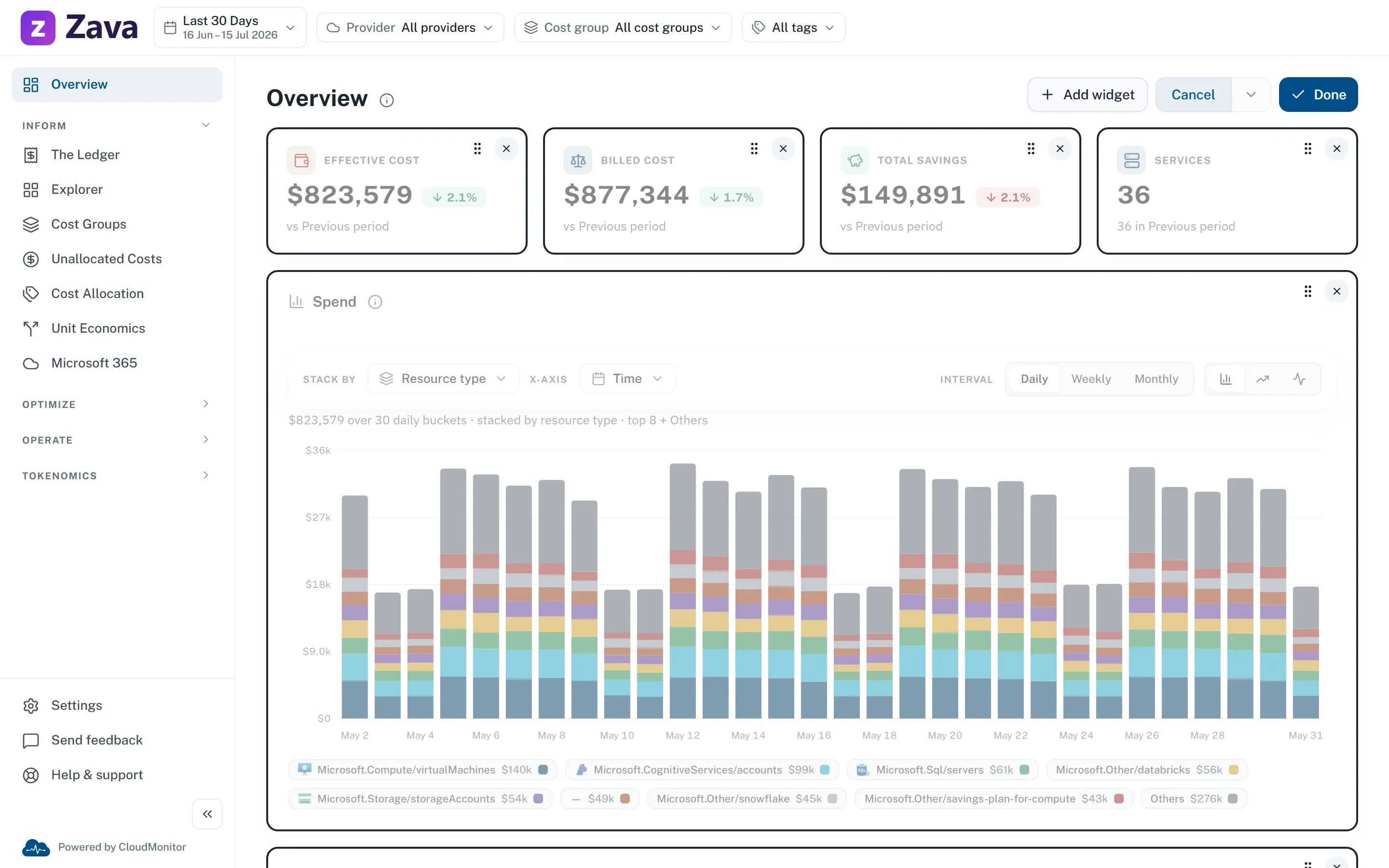
Turn on editing
Section titled “Turn on editing”Edit homepage in the Overview header — Pin, remove and reorder your homepage widgets.
The header changes to Add widget, Cancel and Done.
Add or remove widgets
Section titled “Add or remove widgets”Add widget opens a panel listing every widget available to you, each with a switch. On means pinned.
Each row explains what the widget shows and — usefully — which of the global filters it honors, so you know in advance whether it will respond to your cost group filter.
You can also remove a widget directly on the page: in edit mode each one grows an ×.
Reorder
Section titled “Reorder”Drag the handle on any widget.
Reordering is scoped: the small tiles reorder among themselves, the larger cards among themselves. There’s no free-form grid and no resizing, which keeps the page tidy at any window width. While editing, cards stack into one column.
Finish
Section titled “Finish”Done commits. Cancel puts back whatever you started with.
Reset to default, in the dropdown beside Cancel, restores the shipped layout. It’s a two-step button — press once to arm, again to confirm — so a stray click doesn’t wipe your arrangement.
Why this is worth doing
Section titled “Why this is worth doing”What’s available
Section titled “What’s available”The default layout is four tiles — effective cost, billed cost, total savings and services — over cards for spend over time, spend by provider, cost by cost group, budget health, recommendations and anomalies.
The catalogue has more: commitments, savings, anomalies, budgets, unallocated spend, Microsoft 365, virtual machines, Fabric, and AI adoption widgets if your workspace has that module.
Things worth expecting
Section titled “Things worth expecting”Your layout follows you between devices.
A widget you can’t currently see isn’t lost. If a widget needs a module or role you don’t have, it’s skipped rather than removed — it reappears if that changes.
In demo mode, changes last the session only. Demo mode is a sandbox; nothing there is saved.
A suggestion
Section titled “A suggestion”Build it around the question you open CloudMonitor to answer.
If that’s “is anything wrong?”, put anomalies and budget health at the top and drop the breakdowns. If it’s “how are we tracking?”, keep the trend and the cost group split and drop the operational cards. The default tries to serve both, which means it’s ideal for neither.