Search Resources
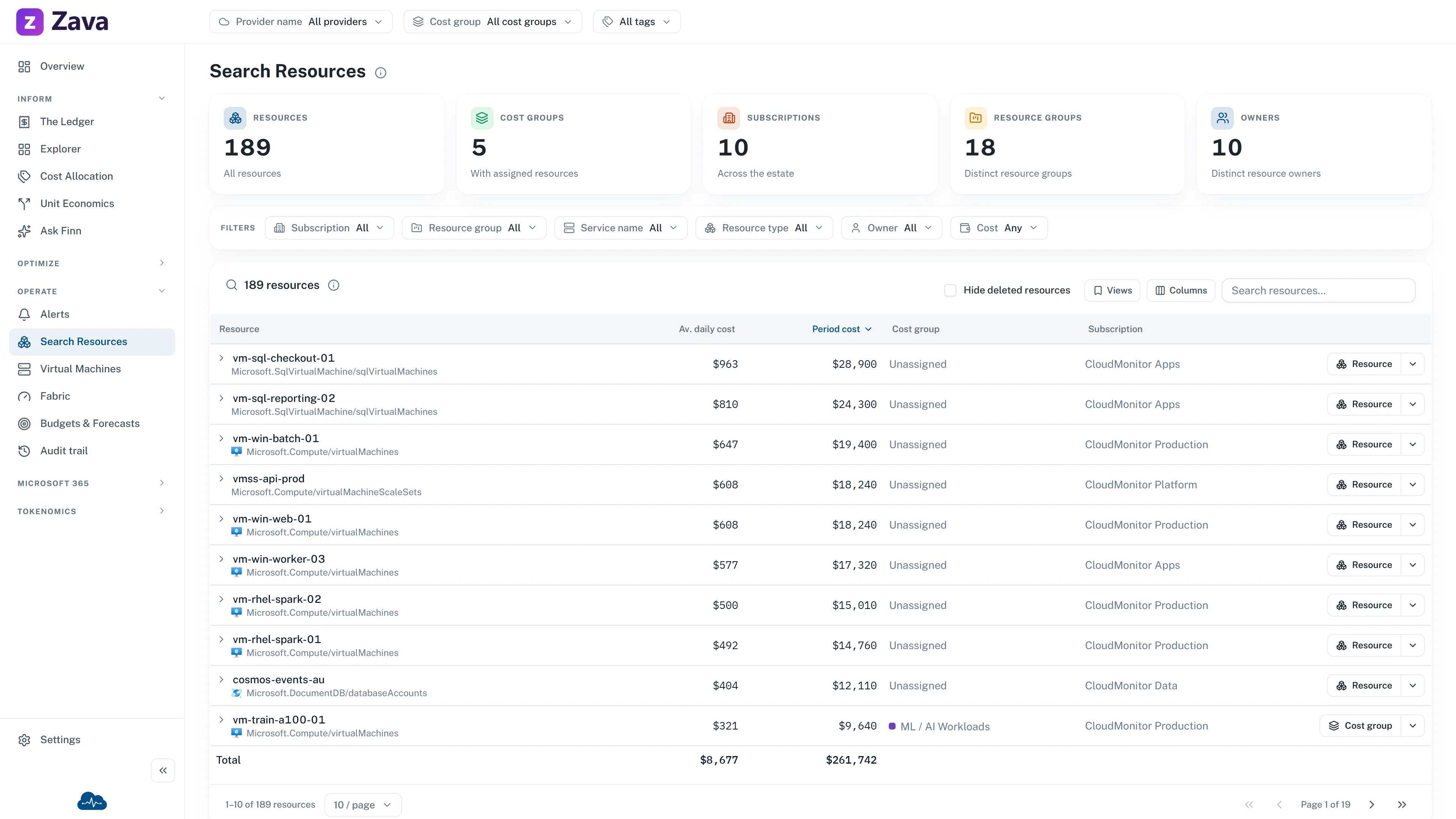
Every resource in the estate, searchable, with its cost and its owner. Read-only.
Where the other reports work top-down — total, then breakdown, then detail — this one works bottom-up. Someone names a thing and you need to know what it costs and whose it is.
What you can search and filter by
Section titled “What you can search and filter by”Search by name, type or owner. Filter by subscription, resource group, service, owner or cost, and scope by cost group from the top bar.
Each row carries the resource’s average daily cost and its cost for the period, plus its owner and creation details.
The counts along the top
Section titled “The counts along the top”Resources, Cost groups, Subscriptions and Resource groups — distinct counts across the estate.
”Unassigned”
Section titled “”Unassigned””An owner column reading Unassigned means nothing in the resource’s metadata identifies who created or owns it. In practice that’s a tagging gap, and it’s the same underlying problem that produces unallocated cost.
Sorting by cost with the owner filter on Unassigned is a quick way to find expensive things nobody has claimed.
Getting out of CloudMonitor
Section titled “Getting out of CloudMonitor”Every row’s ⋮ menu offers Open in Azure portal, plus jumps to its resource group, subscription or cost group. It’s the intended exit: identify the thing here, act on it there.
Filters
Section titled “Filters”Cost group applies and narrows the rows. The cost columns follow your cost basis.
Period and provider are grayed out, with the reason on hover — the inventory is a point-in-time snapshot, and resource rows aren’t sliced by provider on this grid yet.
When to use something else
Section titled “When to use something else”- What is this team spending on? — Cost by service, team and more.
- Why did the bill move? — The Ledger.
- Which VMs are over-licensed? — Virtual Machines, which has the licensing detail this grid doesn’t.