How to create a virtual tag
Tagging in a real estate is inconsistent. One team writes env, another Env, a third environment.
All three mean the same thing and none of them report together.
A virtual tag fixes that in CloudMonitor, without anyone editing a single resource.
What it does, and what it doesn’t
Section titled “What it does, and what it doesn’t”A virtual tag renames. It maps several source tag names onto one reporting name so they group together in reports and in the top-bar filter.
It does not move spend between cost groups. That’s allocation rules, and confusing the two is the most common mistake here. You usually want both: allocation for a clean division of the bill, virtual tags for a consistent way to slice across it.
Create one
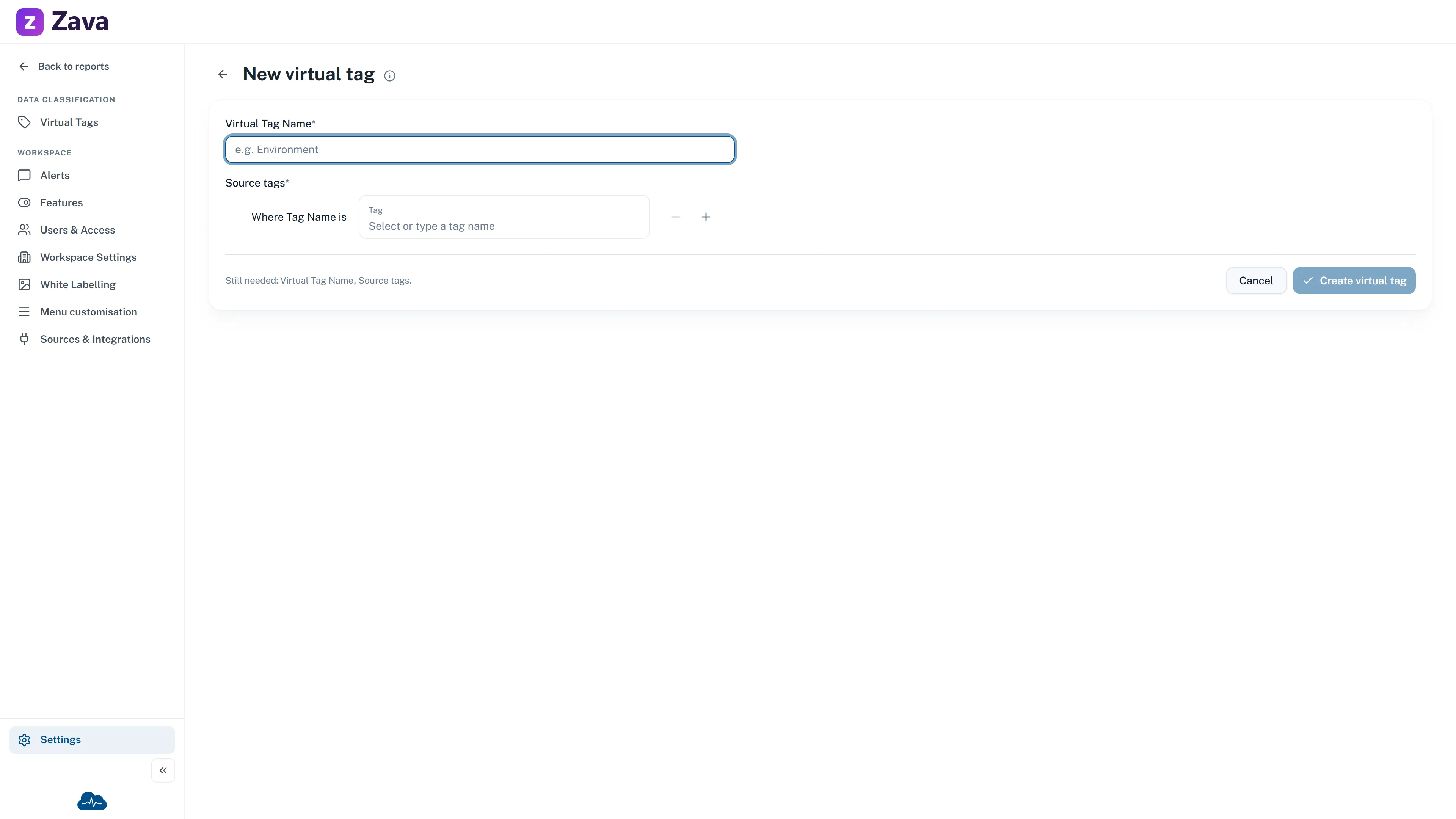
Section titled “Create one”Settings ▸ Virtual Tags ▸ New virtual tag.
Virtual Tag Name — up to 50 characters, e.g. Environment. This is what appears in reports and
in the filter.
Then map the source tags. The first row reads Where Tag Name is, each one after it OR Tag Name is. Pick from the tag names already in your data or type one, then Add rule for the next.
To catch the example above you’d add three rows: env, Env, environment.
Two things the picker does for you
Section titled “Two things the picker does for you”Azure tag names are case-sensitive. Env and env are genuinely different tags and both need
their own row. This is the single biggest reason virtual tags exist.
A source tag can only belong to one virtual tag. The picker hides any name already mapped elsewhere, or already used in another row here, so you can’t accidentally claim it twice. If a name you expect is missing, it’s already mapped — check your other virtual tags.
The workspace default
Section titled “The workspace default”One virtual tag can be pinned as the workspace default, from the bookmark button in the list or Actions ▸ Set as default. It’s the one CloudMonitor reaches for first.
The default can’t be deleted:
This is the workspace default virtual tag, so it can’t be deleted. Set another tag as default first.
Using it
Section titled “Using it”Once saved, the tag appears in the top-bar Virtual Tags filter. Pick the tag, then the values you want. See filtering every report at once.
Each tag also carries an Unallocated bucket — spend that matched none of its source tags. That number is your tagging gap for that tag, and it’s the most useful thing on the picker: a large one tells you a rule is missing or a team isn’t tagging.
A practical order of work
Section titled “A practical order of work”- Look at what tag names actually exist before inventing a scheme — the picker lists them.
- Start with the two or three that matter for reporting. Environment and owner are the usual first picks.
- Check the Unallocated bucket after the next update and add the spellings you missed.
- Only then consider fixing the tags at source, which is slower and belongs to whoever creates resources.