How to triage a cost anomaly
Triage is the loop that keeps the Anomaly Inbox useful. An inbox nobody works through stops being an inbox and becomes a list.
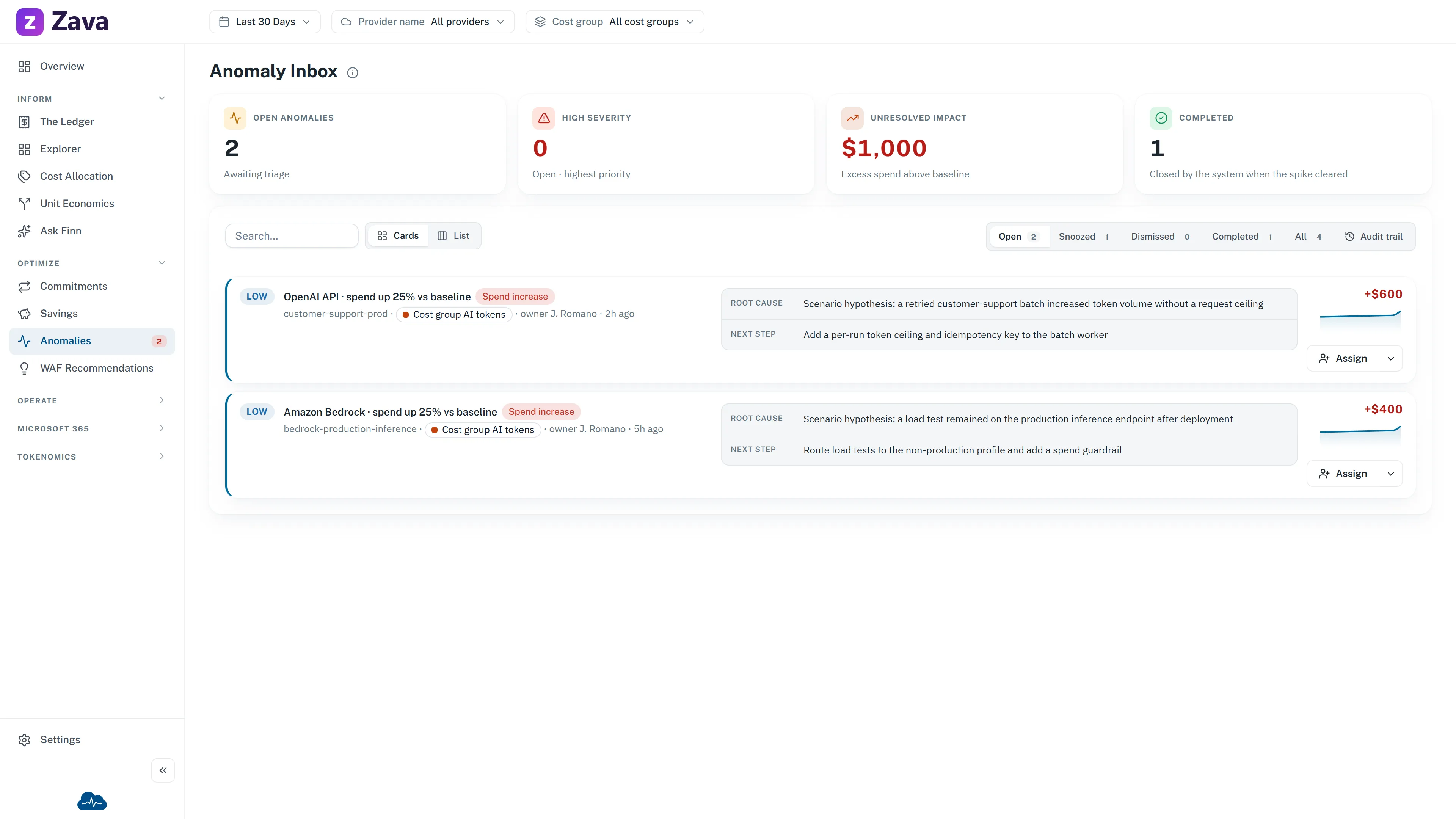
The same actions work identically on Savings & Waste and WAF Recommendations, so learning it once covers all three.
Step 1 — Understand it before you act
Section titled “Step 1 — Understand it before you act”Open the Anomaly Inbox and read the row: the root cause, the owner, and the impact — which is the spend above normal, not the resource’s total cost.
Then use Next step. It’s a link, and it opens The Ledger filtered to the affected subscription and resource group with the date set to the day of the spike. That’s the slice you’d otherwise assemble by hand, and it usually settles what happened in under a minute.
Step 2 — Choose one of four
Section titled “Step 2 — Choose one of four”Open the row’s ⋮ menu.
Comment and hand it on
Section titled “Comment and hand it on”Comment/Send takes an email address and an optional note, then opens a pre-filled email containing the item, your comment and a link back to it.
Use it when the spike belongs to someone else. The assignment is saved whether or not you actually send the email.
Postpone
Section titled “Postpone”Snooze for a period — moves to the Postponed tab. Choose 1 day, 3 days, 1 week, 2 weeks or 1 month.
Use it for “this is real, I’ll deal with it after the release”. It comes back rather than being forgotten, which is the whole point.
Dismiss
Section titled “Dismiss”Dismiss with a reason — moves to the Dismissed tab. The reason is required — a few words minimum, up to a thousand characters.
Use it when the spend is explained and expected: a planned migration, a deliberate scale-up, a one-off load test.
Reopen
Section titled “Reopen”Move back to the Open tab. Available on anything postponed or dismissed. Use it when a dismissal turns out to have been wrong.
What you can’t do
Section titled “What you can’t do”There is no “mark as complete”. The Completed tab exists and nothing you do puts anything in it.
An anomaly completes when the spike actually clears in Azure and CloudMonitor notices on its next run. If spend has genuinely returned to normal, leave it — it will close itself. If it hasn’t and won’t, that’s a Dismiss, not a wait.
This catches people out, so it’s worth saying plainly: waiting for a real, ongoing overspend to “complete” means waiting forever.
A workable routine
Section titled “A workable routine”- Filter the inbox to your cost groups using the top-bar filter.
- Sort by severity and work the top.
- Don’t stop at the high ones. Anything marked New spend is rated medium whatever its size, because there’s no previous day to measure it against — so the largest thing that appeared this week can be sitting in the middle of the list.
- For each: read the root cause, click Next step, decide.
- Anything you can’t decide in two minutes — Postpone it rather than leaving it open. An open item should mean “needs a decision”, not “nobody has looked”.
Where alerts arrive
Section titled “Where alerts arrive”Anomalies also surface in the bell in the top bar, alongside budget threshold alerts, so you don’t have to keep the inbox open to notice something new.